








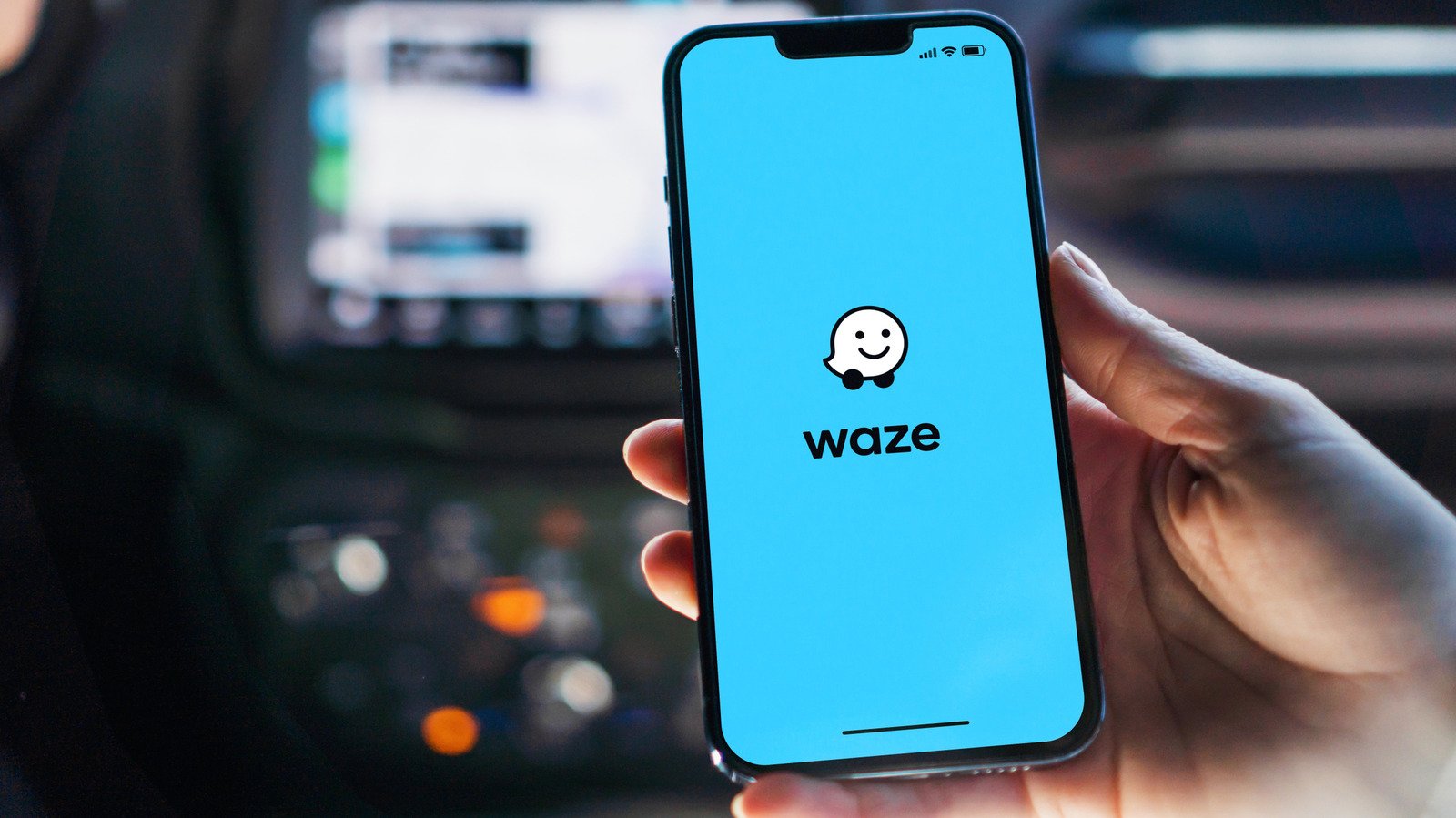
Waze has established itself as a strong competitor to traditional navigation applications like Google Maps, lauded for its intuitive interface and its superior real-time traffic and road condition reporting. Many drivers now depend solely on Waze, whether integrated into their smartphone, Android Auto, or Apple CarPlay, to navigate daily commutes and longer journeys. The application generally excels at helping users steer clear of traffic congestion, unexpected road closures, speed traps, and toll roads. However, much like its counterparts, Waze is not without its imperfections, and users frequently encounter various issues. While these problems might be infrequent for some, they can significantly detract from an otherwise seamless experience.
Among the most frequently reported common issues with Waze are problems with the app failing to launch, freezing during operation, becoming unresponsive to user input, frequent crashes, suggesting inaccurate routes, and failing to update the user’s location. Fortunately, the root cause of these issues often boils down to missing app permissions, an outdated application version, or incorrectly configured settings, all of which are typically straightforward to resolve. Another recurring complaint, which has led some users to express dissatisfaction with Waze, is an excessive number of alerts and notifications. This constant stream of information can be a significant distraction while driving, a concern widely echoed across various online forums, including Reddit.
A particularly frustrating scenario arises when Waze becomes entirely unusable. This encompasses instances where the app fails to open, freezes during its loading sequence, becomes unresponsive mid-navigation, or crashes repeatedly. Since these problems directly impair the app’s fundamental purpose – navigation – addressing them promptly is crucial. In most cases, these issues are minor and easily fixable. Potential culprits include software bugs within Waze, corrupted app cache data, or insufficient storage space on the device. A smartphone with low storage can experience a general slowdown and increased app instability.
To begin troubleshooting these issues, a good first step is clearing the app’s cache. For Android users, this can be done by navigating to Settings > Apps > Waze > Storage, then tapping Clear cache. iOS users can accomplish this by going to Settings > General > iPhone Storage > Waze > Offload App, followed by reinstalling Waze from the App Store. After performing these steps, restarting your phone and retesting Waze is recommended. If the problem persists, check for and install any pending Waze updates. As a last resort, completely uninstalling and then reinstalling Waze from your device’s app store might resolve the issue. In the unlikely event that Waze continues to experience loading or operational difficulties, consider freeing up storage space on your smartphone by uninstalling unused applications and deleting unnecessary files. Alternatively, if deleting files isn’t an option, you could transfer large files to an external storage drive connected via your phone’s charging port.
Another common vexation for Waze users occurs when the app struggles to fetch a route after a destination has been entered. This can manifest as an endless loading screen or a "Something went wrong" error message. This issue is more prevalent when attempting to plot a route to a distant location, whereas nearby destinations typically load without a hitch. This problem often points to server timeouts or connectivity issues that arise when Waze attempts to calculate longer navigation paths.
Several steps can be taken to remedy this routing problem. Firstly, verify your internet connection to ensure you are receiving fast data speeds on your phone. Toggling airplane mode on and off can sometimes resolve temporary connectivity glitches. Additionally, clearing the app’s cache and stored data, or reinstalling Waze entirely, can often fix this. These solutions are applicable to both Android and iOS devices, although the process for clearing cache on an iPhone is slightly more involved. Should these methods prove ineffective, a practical workaround involves segmenting your journey. By inputting an intermediate destination midway between your starting point and final destination, navigating to that point, and then entering your ultimate destination upon arrival, you can often bypass the "Something went wrong" error. Such issues highlight some of the disadvantages Waze may present compared to dominant navigation platforms like Google Maps and Apple Maps.
Many users initially gravitate towards Waze over Google Maps and Apple Maps due to its reputation for accurate and reliable real-time navigation. Therefore, it becomes a significant problem when Waze begins suggesting inaccurate or seemingly random routes that deviate from customary travel paths. In such cases, the issue is frequently attributable to misconfigured Waze settings. To address this, tap the menu icon (represented by three horizontal lines) on the Waze main screen, then proceed to Settings > Navigation. Here, you will find an "Avoid toll roads" option. If you frequently use toll roads and prefer them, ensure this option is disabled if it was previously enabled. Conversely, if Waze habitually directs you through toll roads and you wish to bypass them, enable this setting. This is a matter of personal preference, but an incorrect configuration can lead to seemingly inaccurate or erratic route suggestions. Furthermore, under "Toll and HOV passes," you can integrate any relevant subscriptions or transponder passes you possess to enhance navigation accuracy. Finally, within "Navigation settings," navigate to Personalization > Personalized navigation and activate both "Get personalized ETAs" and "Get personalized routes." Enabling these features allows Waze to factor in your historical driving patterns when generating routes and estimated arrival times, leading to more precise navigation. For instance, if you consistently avoid a particular street or area, Waze will incorporate this preference into its route suggestions.
Users have also reported instances where Waze fails to update their location, whether they are stationary or in motion. This can manifest as the app displaying an incorrect location on the map or issuing a "No GPS – showing your approximate location" error. When this occurs, Waze’s ability to provide accurate directions is severely compromised, potentially leading to missed turns and erroneous ETAs.
The root of this problem typically lies in Waze lacking permission to access your phone’s location services or encountering difficulties accessing the GPS module. To rectify this on Android, navigate to Settings > Apps > Waze > Permissions > Location and select either "Allow all the time" or "Allow only while using the app." Additionally, ensure the "Use precise location" toggle is enabled directly below these options. For iOS users, granting Waze access to your iPhone’s location involves going to Settings > Privacy & Security > Location Services > Waze and choosing "Always" or "While Using the App." Again, confirm that "Precise Location" is active within the same menu. If these adjustments don’t resolve the issue, a phone reboot can sometimes help. On Android, a hard reboot can usually be initiated by holding the power button (or the power button and one of the volume buttons) for 15 to 20 seconds, though the exact process might vary by device and should be confirmed with the manufacturer’s website. To force a reboot on an iPhone, press the volume up button, then the volume down button, and finally hold the power button until the Apple logo appears. As a final diagnostic step, consider using a third-party app to test your phone’s GPS functionality, which can help determine if the problem lies with the GPS hardware itself.
Initially, a primary draw of Waze was its comprehensive alerts regarding traffic, accidents, police presence, and speed cameras. However, a growing number of users now find many of these alerts and notifications to be superfluous and, at times, distracting. This is largely because Waze defaults to having most of these alerts enabled. Thankfully, it’s straightforward to disable any alerts that users deem unhelpful, thereby reducing the frequency of in-app notifications while driving.
To customize alerts in Waze, tap the menu icon (three horizontal lines) on the app’s main screen, then navigate to Settings > Alerts and reports > Reports. Here, you can select individual categories and decide whether you wish to receive alerts for them, disabling as many as you deem unnecessary. Similarly, "Speedometer" settings allow you to disable speed limit beep alerts. Furthermore, under "Voice and sound," you can set the "Sounds" option to "Alerts only" or "Off" to minimize audio notifications. It is advisable to selectively disable only those alerts that are truly unhelpful, while keeping critical alerts active to ensure the best possible Waze experience.
Ultimately, resolving most common Waze issues requires only a few minutes of attention. By judiciously configuring these settings, Waze can be transformed into a less intrusive and distracting navigation tool, while simultaneously delivering more personalized and accurate directions.