






Troubleshooting Apple AirPods: A Guide to Solving 5 Common User Issues
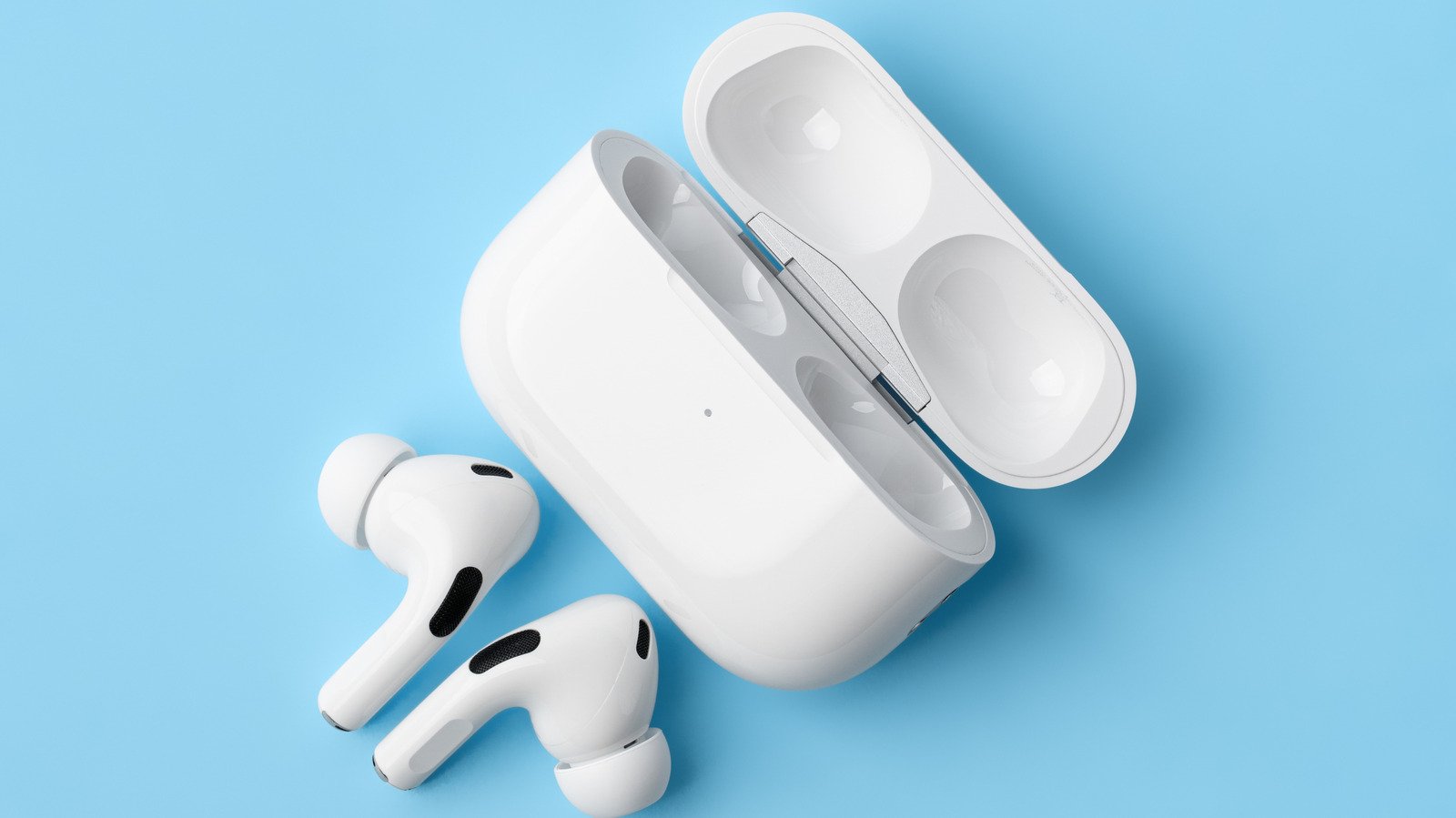
Apple’s AirPods have become the gold standard in the personal audio market, with models like the AirPods Pro and AirPods Max consistently earning top marks from critics and audiophiles alike. Despite their seamless integration with the Apple ecosystem and stellar sound quality, even the most premium technology can hit snags.
If you are experiencing frustrations with your earbuds, don’t rush to the service center just yet. We have compiled a guide to common problems owners have with Apple AirPods and how to resolve them at home.
1. Charging Difficulties
If your AirPods aren’t charging, the culprit is often accumulated debris. Sweat and grime can obstruct the charging pins inside the case. Use a cotton swab lightly dampened with isopropyl alcohol to gently clean the contacts. For the case’s charging port, use a soft-bristled brush to clear out any lint. If the hardware is clean but still won’t charge, try a different cable or power adapter, or perform a "hard reset" by placing both buds in the case and giving it a gentle shake—a trick many users swear by.
2. Connection Failures
Should your AirPods refuse to pair with your iPhone, start by updating your iOS and restarting both your device and the AirPods. If they remain unresponsive, ensure they aren’t "captured" by another device, such as a laptop or tablet, by disconnecting them elsewhere. To force pairing, place the AirPods in the case, open the lid, and hold the setup button (or double-tap the front of the case for newer models) until the LED flashes white.
3. Frequent Disconnections
If your audio keeps cutting out, try disabling "Automatic Ear Detection" in your Bluetooth settings. While this feature is convenient, it can sometimes trigger false disconnects. Alternatively, try turning off "Personalized Spatial Audio" and "Personalized Volume" within the AirPods menu. If these settings tweaks fail, a factory reset—by holding the setup button until the light flashes amber then white—is the most reliable path to a clean slate.
4. One AirPod Stops Working
It is incredibly frustrating when audio only plays from one side. Before assuming hardware failure, deep-clean the charging contacts on both the malfunctioning earbud and the inside of the case. Once cleaned, ensure the case is fully charged and leave the buds inside for at least 30 seconds. Verify that both show the charging bolt icon on your iPhone screen. If one remains unresponsive after a factory reset, you may need to consult Apple support for a potential replacement.
5. Muffled Microphone
If callers complain that you sound "underwater" or muffled, the microphone port may be clogged. Gently use adhesive putty or a soft brush to clear the tiny mic opening—but be careful not to push debris deeper. You can also force the software to prioritize a specific microphone by going to your AirPods settings and toggling the mic to "Always Left" or "Always Right." Additionally, during a live call, you can access the Control Center on your iPhone to switch between "Voice Isolation" and "Standard" modes to see if software processing improves your clarity.
By following these troubleshooting steps, most users can restore their audio experience without the need for professional repairs. If these methods fail, however, visiting an Apple Authorized Service Provider may be the final necessary step to address underlying hardware faults.