








The Apple Watch is a powerful companion for tracking health, managing communication, and monitoring daily metrics. However, its sophisticated design—specifically the always-on or raise-to-wake display—can occasionally become a source of social friction in settings that require darkness or silence. Theater Mode serves as a critical, albeit underutilized, utility for managing these interactions. Since its introduction in watchOS 3.2, this feature has remained a reliable method for users to maintain awareness of their digital life without imposing their device’s light and sound on their environment.
How Theater Mode Works and Its Core Functionality
When enabled, Theater Mode fundamentally alters the interaction behavior of the Apple Watch. Its primary purpose is to suppress the two most disruptive aspects of a smartwatch: the sudden activation of the screen and the audible alerts that accompany incoming data. Under normal operating conditions, an Apple Watch activates its screen whenever a user tilts their wrist. In a darkened room, this sudden burst of illumination can be distracting to others. Theater Mode disables this “raise to wake” functionality entirely.
When the device is in this state, the display remains dark regardless of wrist movement. To view the time or check a notification, the user must physically interact with the device by tapping the screen or pressing the digital crown or side button. This manual activation ensures that the display only illuminates when the wearer intentionally requests it, eliminating accidental light leakage in dark environments.
Furthermore, the feature forces the watch into a silent state. While it does not suppress the haptic feedback engine, it ensures that no audible pings or notification sounds emanate from the speaker. This creates a balanced middle ground between full device usage and the total isolation of Airplane Mode.
Step-by-Step Guide to Enabling the Feature
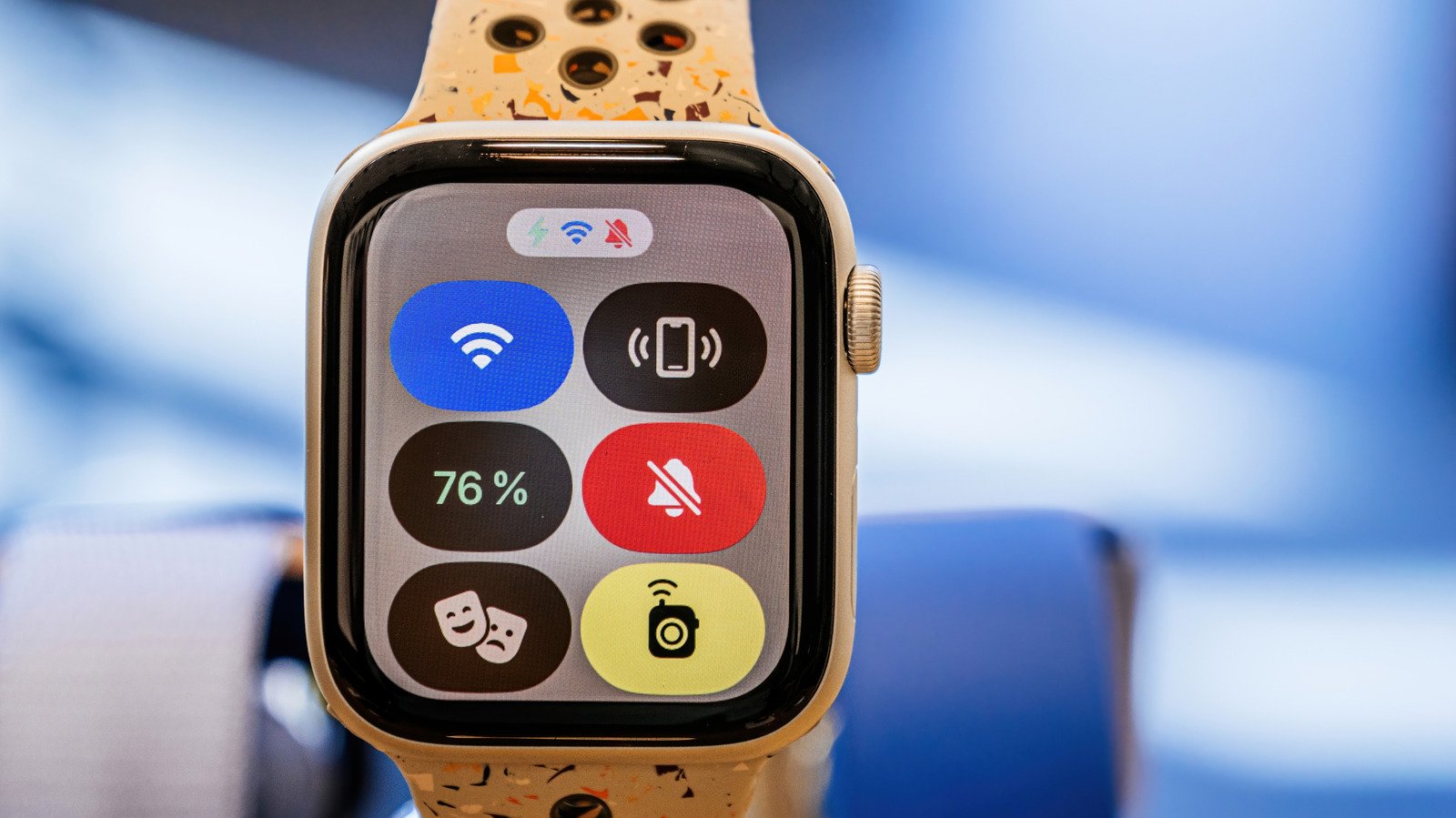
Accessing Theater Mode is straightforward and designed for quick adjustments. To activate it, the user must first access the Control Center. On most watchOS versions, this is accomplished by pressing the side button—the flat, elongated button located beneath the Digital Crown.
Once the Control Center appears, users should look for an icon depicting two masks, typically associated with classical theater comedy and tragedy. Tapping this icon enables the mode. When active, the icon will typically glow orange, signaling that the device is now in a constrained interaction state. To exit, the process is reversed: open the Control Center and tap the same icon again. Because the device does not automatically toggle this setting based on calendar events or location, the user must remember to disable it once they have finished their activity.
Strategic Use-Cases for Discreet Technology
While the name implies a focus on cinemas, the utility of this feature extends to a wide variety of scenarios. Any environment characterized by low lighting or a need for silence is a candidate for Theater Mode. Common examples include live theater performances, concerts, planetarium visits, or lectures where a glowing screen might pull attention away from the speaker or the performance.
Beyond public spaces, professionals often find the mode useful during business presentations or board meetings. In these instances, the priority is maintaining professional decorum while remaining reachable for urgent messages. The retention of haptic feedback ensures that if a high-priority contact sends a message, the wearer will feel the discreet vibration on their wrist without notifying the entire room.
Battery Preservation and System Customization
One often overlooked benefit of Theater Mode is its impact on power consumption. A significant percentage of battery depletion in modern smartwatches is attributed to the display lighting up frequently throughout the day. By locking the screen to a “dark” state, the watch reduces the energy expended on the OLED panel. For users concerned about keeping their device charged during a long evening out, or during a series of back-to-back meetings, keeping the device in this mode can yield a noticeable improvement in battery longevity.
Users can also refine how the watch functions while in this restricted state. Through the Settings menu on the watch, individuals can manage how specific sensors behave. For instance, while some health-tracking metrics are allowed to run in the background, users have the ability to toggle whether certain biometric data collection or specific sensor readings remain active while the device is in this mode.
By understanding these nuances, Apple Watch users can transition from being reactive to their device’s alerts to being intentional. Theater Mode effectively bridges the gap between staying connected and respecting the context of one’s surroundings, proving that advanced technology can coexist with social etiquette. Through simple manual control, the watch remains a functional tool rather than an unintended disruption, regardless of the setting.
Disclaimer: This content is auto-generated for informational purposes only.
Source: Read Original News