








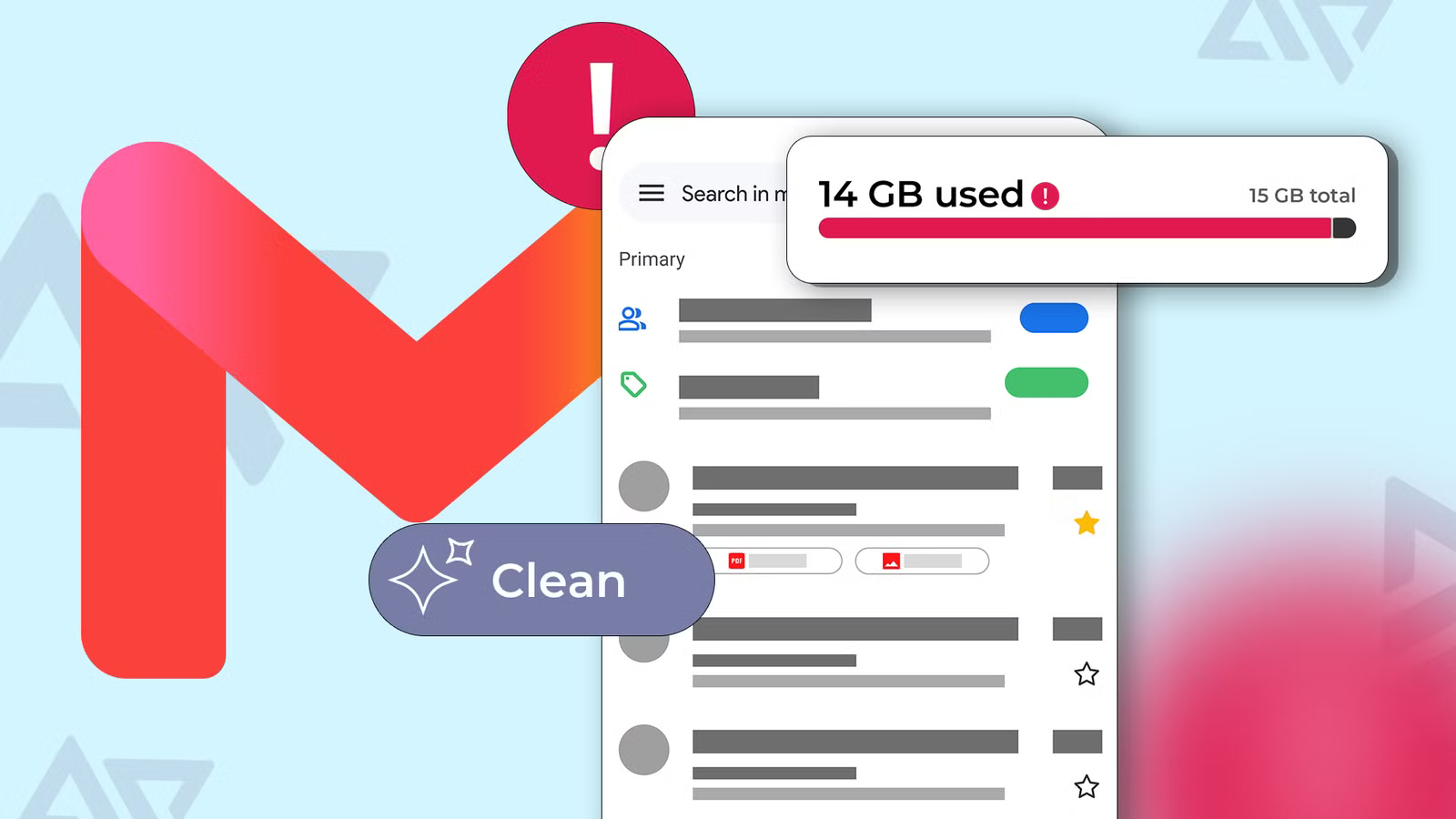
For years, the daunting task of decluttering my email inbox remained a low priority. The generous 15GB of shared storage provided by Google for its various services, including Gmail, often led me to believe that email consumption was negligible compared to the larger files I accumulated. This perspective shifted dramatically when I managed to reclaim a significant 10GB of space, a revelation that highlighted the cumulative impact of even small attachments. Hundreds of seemingly insignificant 2MB files, when aggregated, proved to be just as obstructive as a few large media files.
Today, I meticulously monitor my storage usage across all my mobile devices and computers. This newfound vigilance has led me to discover several unconventional yet effective strategies for managing my digital footprint.
One might assume that the immediate deletion of emails is the most logical first step in freeing up space, but for me, it’s often one of the last resorts. A crucial factor to understand is how Google manages its storage allocation. While Google Docs, Sheets, and Slides created before June 1, 2021, do not count towards the 15GB quota, any document created or edited after that date consumes valuable storage space. As someone who frequently works on various drafts and often needs to reference older pitches or samples, my Gmail storage can diminish even without a single new email arriving, simply because the overall account space is shared across all Google Workspace applications and services.
Individual email messages are typically small, usually a few kilobytes, unless they contain attachments. Even with attachments, it takes a substantial volume to accumulate a meaningful amount of data. Previously, my inbox had bloated to a staggering 16GB. However, by implementing a combination of bulk deletion techniques and leveraging the smarter search capabilities of Gemini, I’ve managed to reduce that to a more manageable 4GB. While I confess to being a digital hoarder, believing that an email might prove important later, I’ve found a workaround. Before initiating any deletion, I utilize Google Takeout, Google’s official data export tool, to download a copy of my entire Mail data as an MBOX file. This ensures that I have a local backup of everything, alleviating any fears of permanently losing crucial information.
After securing my backup, I turn to the Google One app for bulk selection and deletion of emails and their attachments. This app excels at categorizing cloud files and filtering emails based on predefined categories. For those who prefer not to use the app, Gmail’s built-in search operators offer robust alternatives for message filtering. Many users are unaware that the mobile Gmail app treats email size as searchable metadata, indexing it alongside sender information, date, and subject. For instance, searching for “larger:10M” will quickly retrieve all emails exceeding 10 megabytes, even across years of correspondence. Further refining this search with “has:attachment” will narrow the results to only those messages that are both above the specified size and contain an attached file. These results can then be bulk-selected and deleted. Conversely, the “smaller:10M” operator can fetch smaller files, and units can be adjusted using “K” for kilobytes or “G” for gigabytes.
Newsletter subscriptions are a particularly insidious storage trap, often leading to a deluge of duplicate content. The “subscribe-and-forget” model of many newsletters has historically been difficult to counteract due to the lack of a standardized method for revoking consent. I used to find myself letting these emails pile up rather than painstakingly tracking down individual unsubscribe links buried in footers. While I previously relied on extensions like Email Studio for mass opting out, Google has significantly improved this process. The introduction of a one-click unsubscribe button in 2024, followed by a dedicated subscriptions organizer menu in 2025, has been a game-changer. The unsubscribe button prevents future emails from a specific sender, while the organizer menu allows for a comprehensive review of past permissions. Without these tools, simply deleting promotional emails only provides a temporary reprieve, as the counter effectively resets with each new message.
My current strategy involves opening promotional emails and immediately tapping the “Unsubscribe” button. For a more thorough audit, I access the “Manage Subscriptions” option from the menu icon in Gmail’s upper-left corner. It’s important to note that the Promotions tab itself doesn’t offer a direct unsubscribe action; it’s merely a smart category that organizes messages based on layout, sales language, and sender patterns. Emails can appear here due to past transactions, data sharing agreements, account sign-ups, or checkouts where an email was provided, even without explicit consent for marketing reminders. I meticulously cross-check these emails, particularly those related to PR outreach for product reviews. If a sender consistently fails to provide value, I tap the three-dot icon next to the “Unsubscribe” button and select the “Block” option, which directs all future mail from that sender directly to spam. Subsequently, I extract their domain and utilize a search operator in Gmail, such as “from:sender@domain.com,” to batch delete all their previous emails.
It’s crucial to understand Gmail’s two-stage deletion system. The initial step moves messages to the “Trash” folder, where they continue to consume storage space. It’s only after emptying the Trash that the space is truly reclaimed. The Trash folder automatically empties itself after 30 days if no action is taken. Before permanently deleting anything, I always confirm that I haven’t missed any vital information and that my local backups are secure.
Another often overlooked source of storage consumption can be old email imports. Years ago, I performed a post office protocol (POP) import from an old Gmail account, merging its contents with my current inbox. While POP is an older protocol than IMAP, which Google typically uses to pull messages from its servers to a client, it seemed like a convenient way to consolidate everything into one account. However, this decision proved to be messier than anticipated. Imported emails appeared at the top of my inbox, disrupting chronological order and burying recent messages. Furthermore, none of my carefully organized labels carried over; everything was consolidated under a single label named after the old address. Fortunately, these imported messages exist independently, meaning deleting them did not affect the original account. I simply navigated to the label associated with the old account and cleared its contents. If such a straightforward solution isn’t available, creating a filter can be an effective alternative. In the Gmail web app, under “Settings” > “Filters and Blocked Addresses,” you can enter a shared trait for duplicates, such as a sender’s name in the “From” field. After clicking “Create filter,” Gmail offers options like skipping the inbox, marking as read, applying a label, forwarding, or deleting. By checking “Delete it” and then “Also apply filter to matching conversations” at the bottom, you can efficiently clear out all matching emails from your inbox. Unfortunately, the Android app does not support the creation of permanent automatic filter rules, though it does allow for the use of search filters to expedite email retrieval.
The shared nature of Google’s 15GB storage is a significant limitation. It necessitates a more frequent audit of Gmail, Google Drive, and Google Photos compared to individuals who pay to expand their storage into terabytes. Without careful management, one might end up purchasing more storage than truly needed. I learned this lesson firsthand during a free trial of a $250-a-year Student AI plan, which offered a generous 2TB of storage. I barely utilized 20GB of that space. This experience ultimately led me to question the necessity of cloud storage subscriptions. By choosing to build my own local hub for backups, I’ve been able to save money and reallocate those funds towards services that provide more tangible value.