







Enhanced Control: How to Customize the Pixel Watch 5’s Double Pinch Gestures
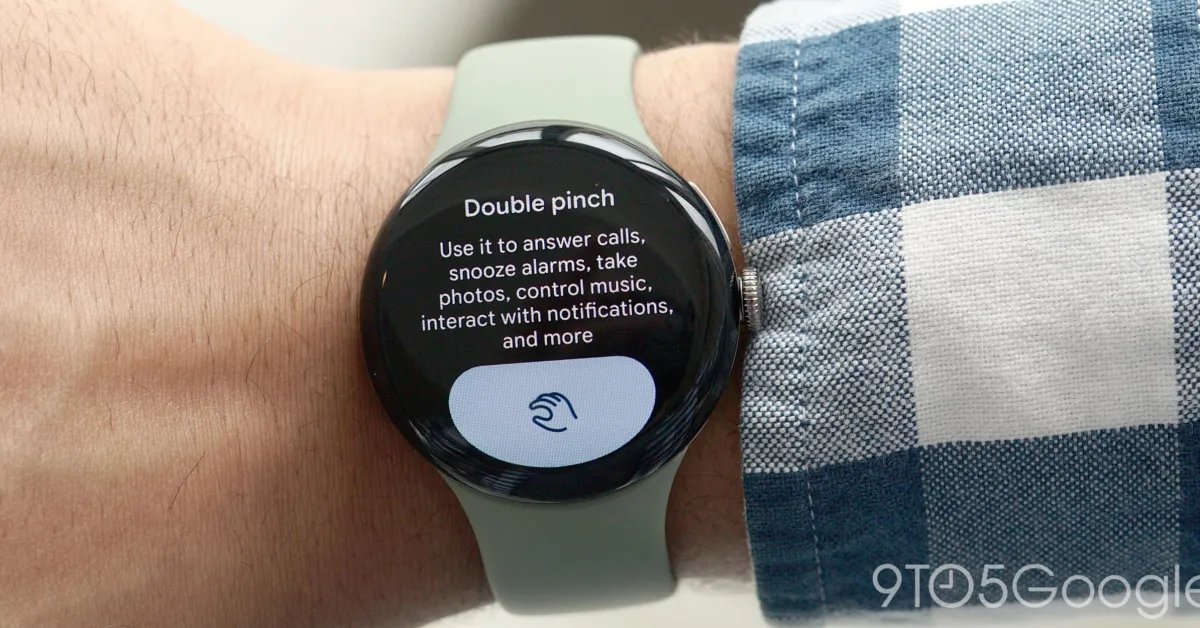
The Google Pixel Watch 5 is taking hands-free interaction to the next level. While the previous iteration, the Pixel Watch 4, introduced the "double pinch" gesture, its functionality was limited to basic tasks like snoozing alarms. With the latest hardware, Google has significantly expanded the utility of this feature, allowing users to tailor their watch’s behavior to match their daily workflow.
The most notable upgrade is the newfound ability for users to customize actions for specific apps, including media controls and alarms. This flexibility ensures that the gesture is no longer just a gimmick, but a functional shortcut that can be adjusted based on personal preference.
Taking Control of Your Gestures
To begin customizing your experience, navigate to Settings > Gestures > Hand gestures on your Pixel Watch 5. Scrolling down will reveal the "Customize actions" menu, which offers several configurations:
- Media Controls: You can toggle between "Play/Pause" or "Skip" functionality, making it easier to control your music or podcasts without touching the screen.
- Alarms: Unlike the Pixel Watch 4, which restricted users to "Snooze," the Pixel Watch 5 offers the option to "Dismiss" an alarm directly via the gesture.
- Watch Face: The double pinch can now be mapped to "Open ongoing notification" or "Always scroll notification tray," ensuring that important alerts are always just a flick of the fingers away.
These additions make navigating the watch interface significantly more fluid, particularly when your hands are full. The option to scroll through the notification tray is a particularly welcome quality-of-life improvement for those who want to quickly stay updated without interacting with the display directly.
Additional Customization Tips
While the settings menu currently highlights double-pinch configurations—with hints suggesting that future updates could potentially bring wrist-turn customization—there are other ways to fine-tune your Pixel Watch 5 experience.
For users who frequently use media, check out the "At a Glance" settings. By long-pressing the media controls within the At a Glance interface, you can choose between viewing a simple icon or both the "Icon and text." Selecting the latter displays the song name, providing a richer experience that pairs beautifully with minimalist watch faces.
While the text size is large enough to be easily readable, it creates a striking, modern look that maximizes the information available at a quick glance. As Google continues to iterate on Wear OS, these granular controls demonstrate a clear commitment to making the Pixel Watch 5 as versatile as it is intuitive.