








Stop Deleting Your Photos: How to Fix Your Phone’s "Storage Almost Full" Warning for Good
We have all been there: you go to snap a photo of a special moment, only to be met by the dreaded "Storage Almost Full" notification. The immediate instinct is to panic-delete apps or mass-erase photos and videos, assuming that our digital hoarding is the sole culprit behind our lack of space.
However, according to a recent survey from Tom’s Guide, your storage woes are likely not as simple as an overstuffed camera roll. In fact, 83% of phone storage issues are caused by just two primary culprits, and blindly hitting "delete" on your precious memories is rarely the most efficient solution.
The Two Main Storage Killers
The Tom’s Guide reader poll revealed a surprisingly even split among smartphone users. While 42% of respondents pointed to a massive library of photos and videos, an almost identical 41% identified hidden app caches as the primary source of their storage drain.
Beyond these two, a significant portion of space is also silently consumed by "zombie" downloads—forgotten podcasts, offline streaming content, and idle gaming apps. The good news? You don’t need a new device to fix this; you just need to address these four specific digital traps.
1. Master the Photo Vault
Rather than deleting your library, you should leverage your phone’s built-in optimization tools. These features store full-resolution originals in the cloud while keeping space-saving, lightweight previews on your device.
- iPhone: Navigate to Settings > Apps > Photos and toggle on "Optimize Storage."
- Android: Open the Google Photos app, tap your profile icon, and select the "Free Up Space" tool.
2. Clear the Invisible Cache
Apps like TikTok, Instagram, and Chrome accumulate significant "cache" data—temporary files that grow over time.
- Android: Go to Settings > Apps, select a storage-heavy app, and tap "Clear Cache" under the storage menu.
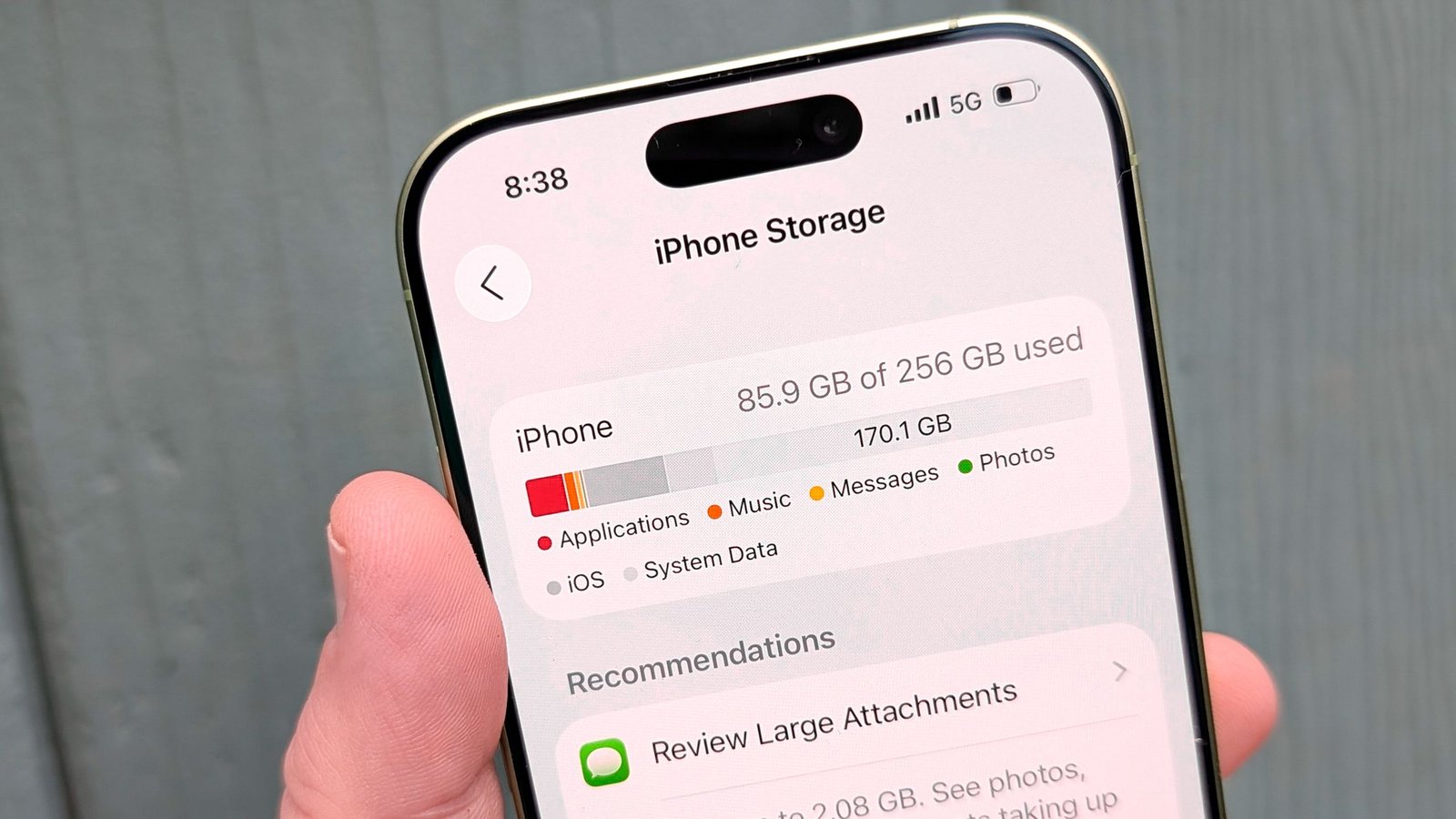
- iPhone: For many apps, you may need to go to the app’s internal settings to "Clear Cache." If that isn’t an option, you can go to Settings > General > iPhone Storage to offload or delete and reinstall the app. To clear Safari, head to Settings > Safari > Clear History and Website Data.
3. Purge Forgotten Downloads
We often download movies for flights or podcasts for commutes and forget to remove them once they’ve served their purpose. Check your media apps (like Netflix, Spotify, or Apple Podcasts) and manually delete finished episodes or playlists. To stop the cycle, enable features like Netflix’s "Smart Downloads," which automatically scrubs watched content.
4. Offload Abandoned Games
Games are among the most resource-heavy applications on your phone, often occupying several gigabytes each. If you haven’t played a title in months, it’s time for it to go. Your game progress is usually tied to your account in the cloud, meaning you can safely uninstall the app and return to your level later if you decide to reinstall it. Check your phone’s storage settings to sort your apps by "last used" to identify the biggest space-wasters you no longer use.
By focusing on these systematic cleanup steps, you can reclaim significant amounts of space without sacrificing the files you actually care about.