






Beyond the Aux: How to Master Your Apple CarPlay Audio Quality
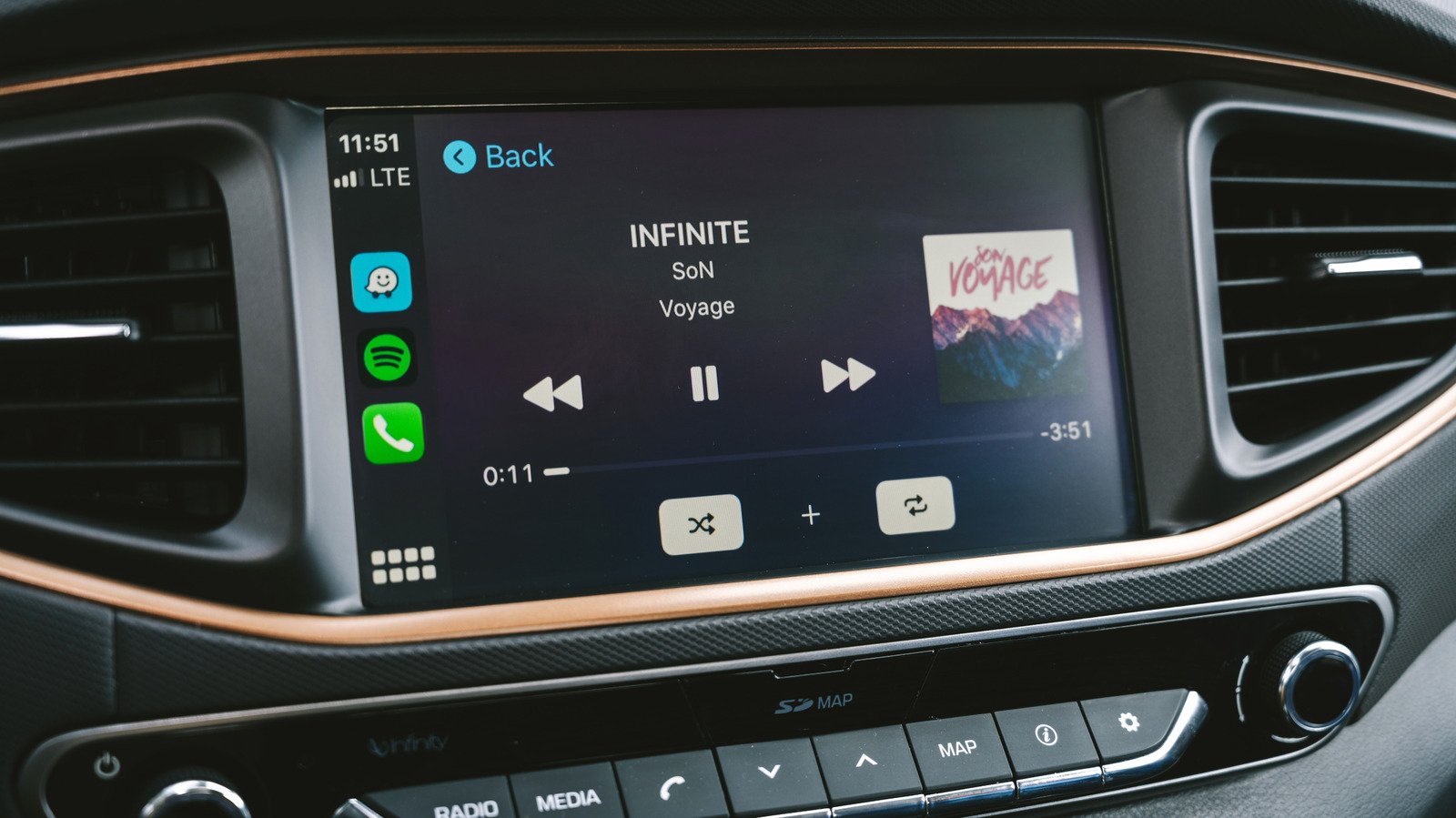
For millions of drivers, Apple CarPlay is the ultimate travel companion, seamlessly bridging the gap between a smartphone and the dashboard. However, many users find that the audio coming through their car speakers doesn’t quite match the crispness they experience while wearing high-quality headphones. If your music feels flat, thin, or underwhelming, you don’t necessarily need a new sound system—you just need to optimize your settings. Here is how to improve your audio quality on Apple CarPlay.
Wired vs. Wireless: The Lossless Factor
Convenience is the primary selling point of wireless CarPlay; you hop in the car and your music begins to play automatically. However, there is a technical trade-off. Wireless connectivity requires Apple to compress audio into the AAC-LC codec. While convenient, this lossy compression discards data to maintain a stable wireless link.
For audiophiles, a wired USB connection is essential. When you plug your iPhone in, CarPlay utilizes the LPCM codec, which supports uncompressed digital audio. If you have an Apple Music subscription, this allows for true lossless ALAC (Apple Lossless Audio Codec) playback, ensuring your vehicle receives the full, uncompressed audio file.
Download for Consistency
Streaming music over cellular data is prone to fluctuations. As you drive, your phone constantly switches between cell towers, which can cause the streaming quality to dip or throttle to prevent buffering.
To bypass this, download your playlists directly to your iPhone. In Apple Music, navigate to your quality settings and ensure you have selected “Lossless” (up to 24-bit/48kHz) for downloads. Spotify users can also download high-quality files to ensure that even in dead zones, the fidelity remains consistent. Not only will this provide a richer sound, but it will also save your mobile data plan from the strain of constant high-bitrate streaming.
Calibrate Your EQ and Sound Settings
Sometimes, “bad” sound is just a matter of conflicting software settings. If you use custom Equalizer (EQ) presets on your phone, they may be doing more harm than good in your vehicle.
- Reset the EQ: Navigate to Settings > Music > EQ. If you have a custom preset active, try setting it to “Off” and listen to how your car’s built-in system handles the flat output.
- Manage Sound Check: The “Sound Check” feature in Apple Music is designed to normalize audio levels between different tracks. While this prevents jarring volume jumps, it can sometimes compress the dynamic range of a song. Toggle this off to see if the audio clarity improves.
Dealing with the “Audio Ducking” Bug
One of the most persistent issues users encounter is a sudden loss of volume or bass after using Siri or receiving GPS voice guidance. This is often caused by a glitch where the system fails to return to the original audio state after the navigation or assistant finishes speaking.
If your music suddenly sounds muffled or thin, try this community-verified fix: trigger Siri using your steering wheel button, then immediately dismiss it. This often forces the head unit to reset the audio output to its standard state, instantly restoring clarity. If issues persist, clearing the Bluetooth/CarPlay pairing by going to Settings > General > CarPlay and selecting “Forget This Car” is the most effective way to reset the connection.
Final Thoughts
While you cannot change the physical limitations of your car’s factory speakers or the road noise entering your cabin, you can ensure that the “data” reaching your speakers is as clean as possible. By prioritizing a wired connection, downloading lossless files, and pruning your software settings, you can unlock a significantly better listening experience on every commute. Experiment with these adjustments one by one to find the perfect sonic profile for your vehicle.