








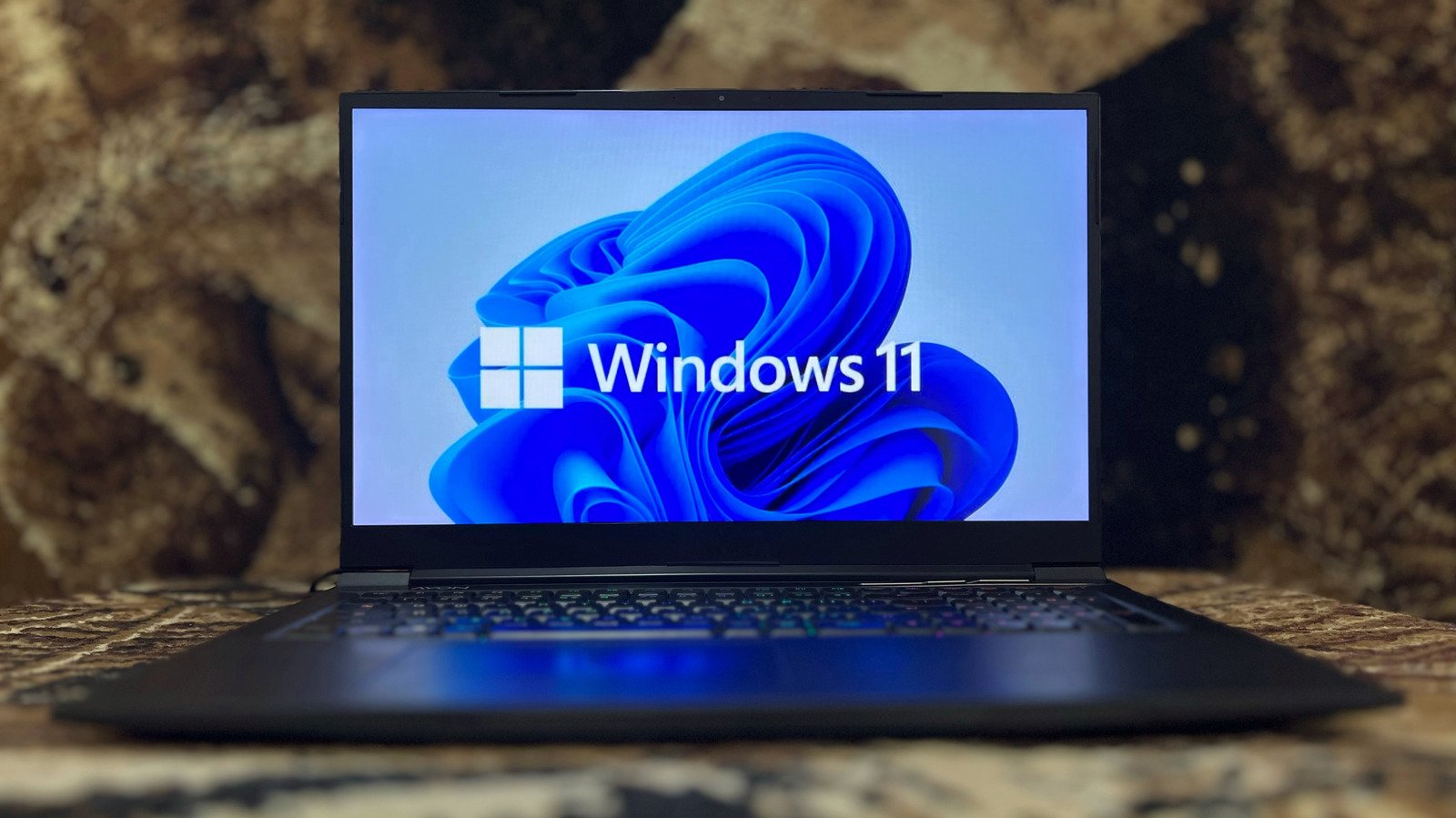
Windows operating systems contain numerous built-in capabilities that often go unnoticed by the average user. Among these, the virtual desktop feature stands out as a robust utility for managing complex workflows. While many users operate within a single cluttered workspace, the ability to create multiple virtual environments provides a method to partition tasks, minimize distractions, and expand available screen space without requiring additional physical hardware.
Understanding the Mechanics of Virtual Desktops
At its core, the virtual desktop feature allows a user to maintain several distinct workspaces on a single display. When a new desktop is generated, the operating system creates an isolated environment where specific applications can reside. While the underlying system resources—such as CPU and RAM—are shared across these environments, the visual workspace is segmented.
This functionality is available on both Windows 10 and Windows 11. It is designed to assist users who juggle various responsibilities, such as software development, academic research, or content creation, by allowing them to group related windows and programs. By keeping unrelated tasks on separate desktops, users can reduce the cognitive load associated with searching for buried windows or navigating a crowded taskbar.
How to Set Up and Manage Virtual Desktops
Establishing a multi-desktop workflow is efficient and requires minimal configuration. Users can initiate a new workspace by hovering over the Task View icon in the taskbar or by using the keyboard shortcut Windows + Tab. From the interface that appears, selecting “New desktop” will create an additional space. For those who prefer keyboard navigation, pressing Windows + Ctrl + D instantly creates a new desktop.
Customization is a key component of this feature. In Windows 11, users can assign unique wallpapers to each desktop, which provides a visual cue to identify which workspace is currently active. Renaming desktops—such as labeling them “Project A,” “Communication,” or “Research”—further enhances organizational clarity.
Switching between these environments is equally straightforward. Users can toggle through their desktops using the Windows + Ctrl + Left or Right arrow key combinations. If an application is opened on the wrong desktop, it can be relocated by opening the Task View interface, right-clicking the window, and selecting the desired destination. To remove a desktop, users can click the “X” within the Task View panel or use the keyboard shortcut Windows + Ctrl + F4.
Strategic Implementation for Improved Productivity
The true value of virtual desktops emerges when they are used with intent. A common strategy involves dedicating specific workspaces to thematic categories. For instance, a user might reserve one desktop solely for communication tools like email and messaging apps, while another is dedicated to deep-work applications such as code editors, spreadsheet software, or creative tools. By distancing social or communication interfaces from primary work tasks, users can foster a more focused environment.
This segmentation is particularly beneficial for users limited to a single monitor. By treating virtual desktops as “extended screens,” one can effectively increase their visual real estate. When browsing the web, utilizing separate browser profiles for different desktops ensures that work-related cookies and history do not interfere with personal browsing, creating a cleaner experience that keeps related data grouped logically.
Optimizing Taskbar and Alt+Tab Functionality
The way Windows handles application visibility across these desktops can be tailored to suit specific needs through the system settings. By navigating to Settings, selecting System, and entering the Multitasking menu, users can adjust how their taskbar and Alt+Tab shortcuts behave.
Under the Desktops section, Windows provides two primary adjustments. Users can choose whether the taskbar should display only the windows present on the current desktop or every open window across the entire system. Similarly, the Alt+Tab behavior can be restricted to show only the applications currently running on the active desktop. Setting these to “Only on the desktop I’m using” is recommended for those who want a completely isolated experience, as it prevents the taskbar from becoming overcrowded with irrelevant icons.
Advanced Control and Third-Party Extensions
While the native Windows implementation is sufficient for most users, those requiring granular control over their workspaces can supplement the experience with third-party tools. One such utility is Windows Virtual Desktop Helper, an open-source project available on GitHub. This software addresses some of the limitations of the default interface by providing clearer visual indicators of which desktop is currently active.
This tool can display the name of the desktop on the screen during the transition process, helping users maintain spatial orientation. Additionally, it offers enhanced navigation features, allowing users to switch desktops via the system tray or by defining custom hotkeys. By utilizing these tools alongside the native Windows features, power users can create a highly tailored environment that streamlines window management and optimizes the digital workspace for maximum efficiency. Whether managing a complex professional project or organizing personal tasks, the use of virtual desktops is an essential skill for modern computing.
Disclaimer: This content is auto-generated for informational purposes only.
Source: Read Original News