








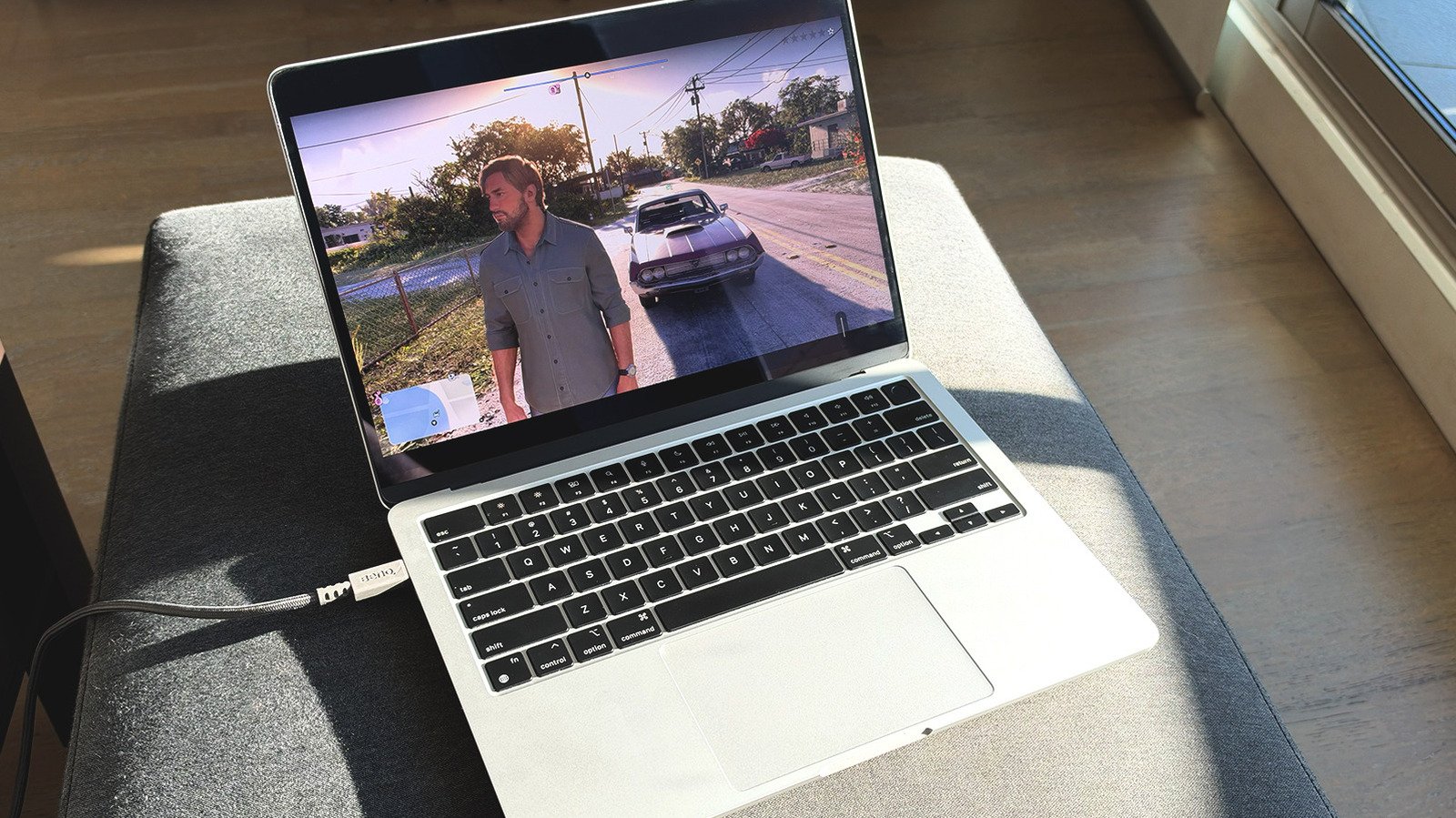
The arrival of Grand Theft Auto 6 on PlayStation 5 and Xbox Series X/S marks a significant milestone for open-world gaming. Players who have spent years anticipating this release are now immersing themselves in the state of Leonida. Given the massive scale of the map and the depth of the gameplay mechanics, the ability to access the title away from a home console setup is highly desirable. Both Sony and Microsoft provide robust remote play features that allow users to bridge the gap between their console and their mobile devices, tablets, or computers, ensuring the experience remains accessible regardless of physical location.
Understanding Remote Play Versus Cloud Gaming
It is essential to distinguish remote play from traditional cloud gaming. While cloud gaming services stream titles from massive, centralized remote server farms, remote play acts as a personal broadcast system. When a user engages in remote play, their own console processes the game, handles the graphical rendering, and manages the simulation logic locally. The video and audio output are then encoded and transmitted over the internet to a secondary device, such as an iPhone, iPad, Mac, or Windows PC.
This method effectively turns a user’s console into a private, personal server. Because the hardware handling the heavy computational load is located at the user’s home, there is no need for the monthly subscriptions typically associated with cloud gaming platforms. However, this convenience requires a reliable internet connection. For optimal performance, providers suggest using 5GHz Wi-Fi networks to maintain high bandwidth and lower latency. Sony generally recommends a connection speed of 15 Mbps, while Microsoft suggests a stable speed between 7 and 10 Mbps to prevent input lag or pixelated video streams.
Configuring PlayStation 5 for Remote Streaming
To initiate remote play on a PlayStation 5, the console must first be configured to accept external connections and wake from its low-power state. The setup begins in the system settings, where the user must navigate to the Remote Play menu to enable the function. To ensure the console remains reachable, the user must go to Power Saving settings and toggle on the features that allow the PS5 to stay connected to the internet while in Rest Mode. This is critical for users who intend to play away from home, as it allows the device to receive the wake-up signal from the app.
Once the console is prepared, the PS Remote Play app must be installed on the secondary device. After signing into the same PlayStation account used on the console, the app will scan for the paired PS5. When the connection is established, the interface displays the console’s dashboard, allowing the user to launch the game. While touchscreen controls are available on mobile devices, connecting a DualSense controller via Bluetooth significantly enhances precision. Pairing the controller involves holding the PS and Create buttons simultaneously until the light bar flashes, signaling that it is ready for connection via the device’s Bluetooth menu.
Managing Xbox Remote Play via Browser
Microsoft employs a browser-based approach to remote play, which simplifies the process for users on diverse hardware. The configuration starts on the Xbox console by navigating to the devices and connections menu to toggle remote features. Setting the power mode to Sleep is mandatory for the system to remain in a responsive state for incoming connection requests. Unlike the dedicated app architecture used by Sony, Xbox users can navigate to the dedicated remote play website, authenticate their Microsoft account, and select their console to initiate the stream directly within the browser window.
Pairing an Xbox controller to the client device follows a similar Bluetooth protocol: holding the Pair button on the controller for three seconds makes it discoverable. Once the controller is connected to the iPhone, tablet, or PC, the user can navigate the console’s interface as if they were seated directly in front of the console. This browser-based flexibility ensures that almost any device capable of modern web rendering can serve as a display, providing a seamless transition from the television to a portable screen.
Performance Considerations and Limitations
While remote play allows for impressive flexibility, the quality of the experience is inherently tied to the quality of the network. Wired ethernet connections on both the console and the streaming device will consistently provide the most stable performance with the lowest latency. Users relying on wireless networks should prioritize 5GHz connections, as 2.4GHz signals are often prone to interference and throughput limitations, which can manifest as dropped frames or input delay.
Furthermore, certain console-specific features may not translate perfectly across all platforms. For instance, advanced haptic feedback and adaptive triggers found on the DualSense controller may function flawlessly on a native PS5 setup but can lose some functionality when connected to a Windows or Mac environment unless specifically configured with a wired USB connection. Despite these minor limitations, remote play offers a practical solution for accessing a modern technical achievement like Grand Theft Auto 6 without being tethered to a living room setup. This technology effectively extends the reach of high-end hardware, allowing for a flexible and highly responsive gaming experience.
Disclaimer: This content is auto-generated for informational purposes only.
Source: Read Original News