







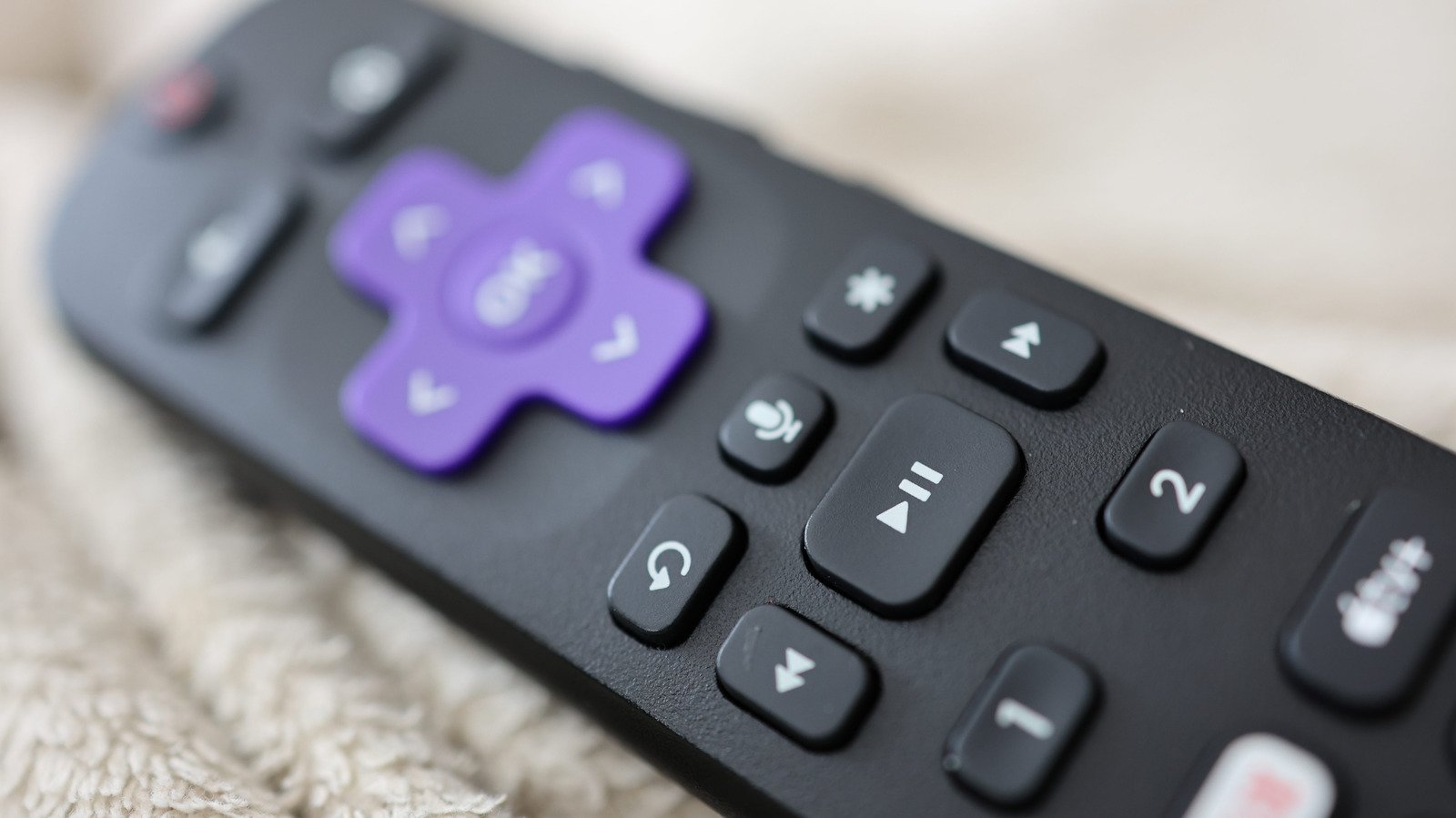
The Roku ecosystem is widely recognized for its straightforward, user-centric interface. While most buttons on the standard remote control are self-explanatory—such as the directional pad for navigation or the dedicated streaming service launch buttons—the button marked with an asterisk, commonly referred to as the star button, remains a source of confusion for many users. Positioned prominently above the fast-forward function, this key serves as a context-aware command center, providing specialized utilities that change depending on the current state of the device.
Understanding the Context-Aware Functionality
The primary challenge in grasping the star button’s utility lies in its dynamic nature. Rather than performing a single fixed task, the remote uses the button to trigger a secondary menu or command specific to the highlighted item or active application. This is not a static shortcut; it is a gateway to system management, media customization, and accessibility tools. By design, the star button functions as a secondary interface layer that keeps the primary user experience clean while retaining granular control for those who need it. Whether a user is operating a dedicated Roku streaming player or an integrated Roku TV, the star button remains the primary mechanism for accessing hidden system layers.
Managing Applications on the Home Screen
When navigating the Roku home screen, the star button acts as a manager for your installed applications and inputs. Users frequently use this button to organize their workspace. By highlighting a specific streaming channel and pressing the star button, a menu appears that allows for quick maintenance. This interface provides information such as the specific software version and build number, which is useful for troubleshooting performance issues or verifying that a channel has received a recent patch from the developer.
Beyond technical metadata, this menu facilitates personalization. Users can rearrange their channel grid, remove redundant applications, or rate a service. For owners of Roku TV models, the functionality extends to external hardware inputs. When a gaming console, Blu-ray player, or cable box input is highlighted, the star button provides an interface to rename the input or adjust display settings specific to that port, significantly simplifying the management of a complex home theater setup.
Tailoring the Media Consumption Experience
Perhaps the most significant use case for the star button occurs during active video playback. When streaming content, pressing the star button triggers an overlay menu on the side of the display. This menu is the central hub for video and audio adjustments. In a Roku TV environment, this is where users can modify picture modes, toggle motion smoothing, adjust color temperature, or enable energy-saving settings without exiting the content or navigating to the global system settings menu.
Audio management is equally important within this interface. The star button allows for quick adjustments to volume leveling, which helps maintain a consistent sound output during loud action scenes or sudden volume shifts in commercials. Furthermore, users can quickly access closed captioning settings from this menu. While some individual apps offer their own settings, the star button provides a standardized way to force captioning or adjust audio tracks across different services, ensuring a consistent experience regardless of which platform is currently streaming the media.
Accessibility and Quick-Toggle Shortcuts
Accessibility is a core component of the Roku interface, and the star button serves as a critical bridge for users who rely on assistive features. Roku devices include a screen reader, often known as the Audio Guide, which provides spoken feedback regarding menu navigation and interface state. While this feature is primarily configured through the deep-menu accessibility settings, the star button provides a hardware-level shortcut for immediate access.
By pressing the star button four times in rapid succession, the screen reader can be toggled on or off instantly. This physical shortcut is essential for users who may be unable to navigate the visual interface to reach the settings menu to enable speech output. The supported hardware for this feature is extensive, covering nearly the entire current catalog of Roku devices, including Streaming Sticks, Ultra players, and integrated soundbars. This design choice ensures that the device remains inclusive by allowing users to bypass the visual setup process to gain immediate control over the interface.
The Impact of the Star Button on User Efficiency
The technical design of the star button demonstrates a focus on balancing simplicity with power. By relegating secondary settings and administrative tasks to a single, context-sensitive button, Roku manages to keep the main interface uncluttered. This approach reduces the learning curve for casual viewers who may never need to check a version number or rename an input, while simultaneously offering power users a fast lane to advanced adjustments.
For the average consumer, recognizing the capabilities of this button transforms the Roku remote from a basic controller into a powerful utility tool. It eliminates the need for endless navigation through deep settings menus, instead bringing the necessary adjustments directly to the point of use. Whether it is adjusting screen brightness during a movie, clearing out unused applications, or quickly enabling voice-guided navigation, the star button is arguably the most versatile piece of hardware on the Roku remote, acting as the silent workhorse behind a seamless streaming experience.
Disclaimer: This content is auto-generated for informational purposes only.
Source: Read Original News