






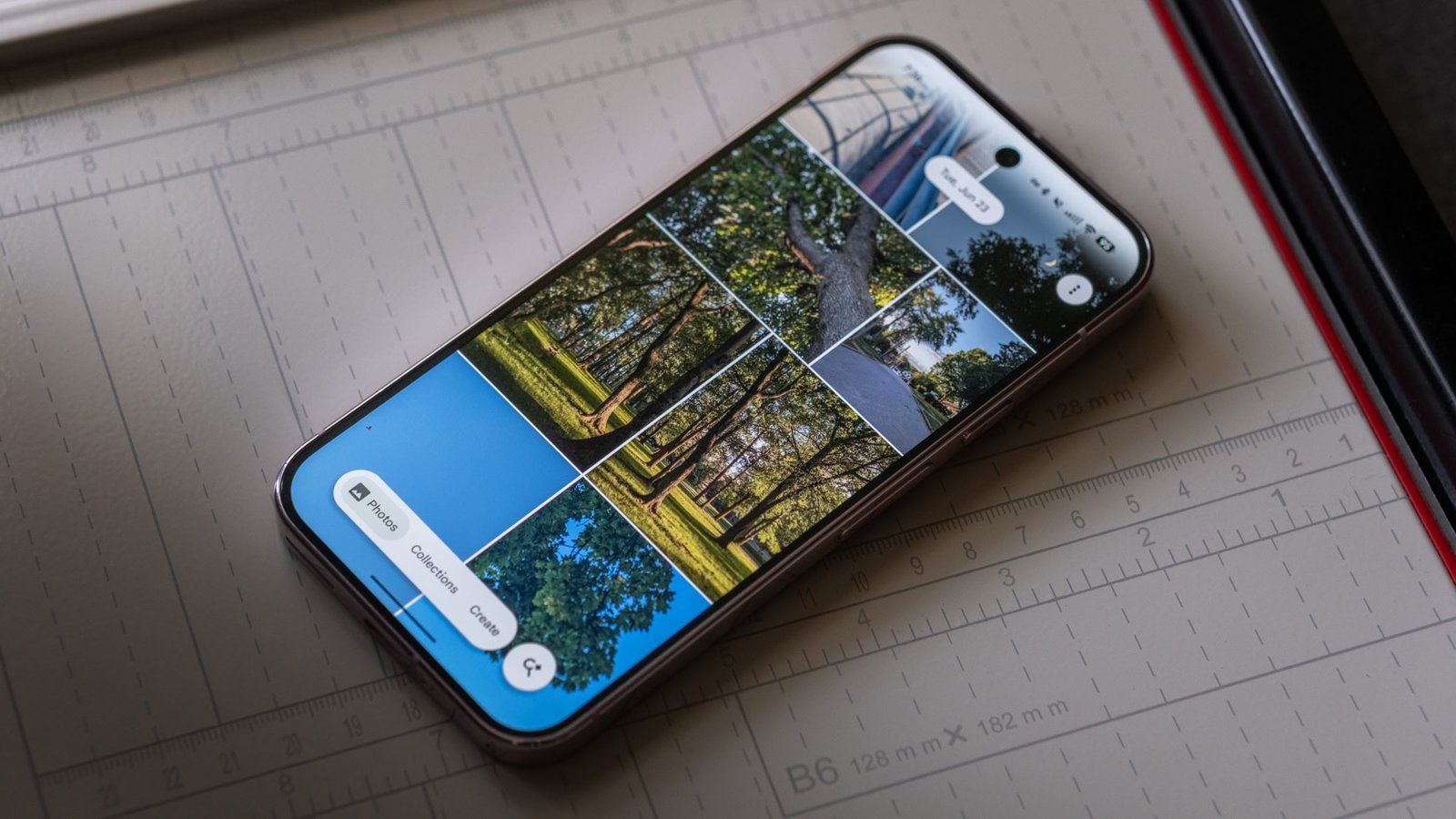
Maintaining adequate storage in Google Photos can be a persistent challenge, even for users subscribed to Google One. Despite having an extended storage plan, the continuous accumulation of media can quickly push limits. The inherent difficulty lies in Google Photos’ somewhat cumbersome tools for managing and clearing out unwanted files. Beyond basic bulk deletion and compression, users are often left to manually sift through their extensive collections. However, by adopting a systematic approach, it’s possible to significantly reclaim valuable storage space. One effective strategy involves prioritizing the deletion of media that actively contributes to your storage quota.
Many users, like myself, initially benefited from Google’s policy offering unlimited free storage for compressed images uploaded before June 1, 2021. This historical advantage means that any content uploaded before this cutoff date using the “Storage Saver” option does not count towards the current Google Account storage limit. Therefore, when attempting to free up space, these older, compressed items can be safely ignored, as their deletion would not impact the current storage consumption. This crucial distinction helps focus efforts on more impactful deletions.
A practical starting point for clearing out space is to target readily disposable content, such as screenshots. These often accumulate rapidly and serve ephemeral purposes, like capturing information for articles or sharing memes. Leveraging a desktop browser to manage Google Photos can streamline this process, allowing for easier selection of multiple items using keyboard shortcuts. By systematically reviewing and removing older or irrelevant screenshots, users can achieve quick and substantial gains in available storage. In my own experience, thousands of screenshots were eliminated, freeing up several gigabytes.
Another beneficial feature, albeit with some limitations, is Google Photos’ ability to group similar images into “stacks.” While not a perfect duplicate finder, this functionality can highlight sets of photos that are very similar, often taken in quick succession. The process involves carefully reviewing each stack, selecting the best image, and then deleting the rest. This can be time-consuming, as stacks sometimes include disparate images, requiring individual review and deletion. However, despite these minor inconveniences, utilizing stacks can lead to the removal of hundreds of redundant photos and further significant storage recovery.
For the most impactful storage reduction, identifying and removing large media files is paramount. Google Photos, through the Google One storage manager, provides a direct pathway to pinpointing these hefty files. This tool is accessible by tapping your account icon in the Google Photos app, selecting “Clean up space,” and then reviewing “Large photos and videos.” On the web interface, simply clicking the storage quota displays the option for large files. Often, these large files are videos, especially those recorded in high resolutions like 1080p at 60fps or even higher. Even short video clips can add up quickly. By meticulously reviewing and deleting unnecessary videos, particularly those backed up elsewhere or no longer needed, users can achieve the most dramatic reductions in storage consumption. My own efforts in this area, focusing on product unboxings, software tutorials, and social media videos, resulted in clearing nearly 10 gigabytes of space.
Through this multi-pronged approach, encompassing the strategic ignoring of legacy free content, systematic deletion of screenshots, careful management of stacked similar photos, and targeted removal of large video files, a substantial amount of storage space can be recovered. This proactive management not only delays the need for higher-tier storage subscriptions but also helps maintain a more organized and manageable digital photo library. However, the current tools are not as intuitive as they could be, and many users agree that Google should simplify the process of freeing up space within Google Photos.