





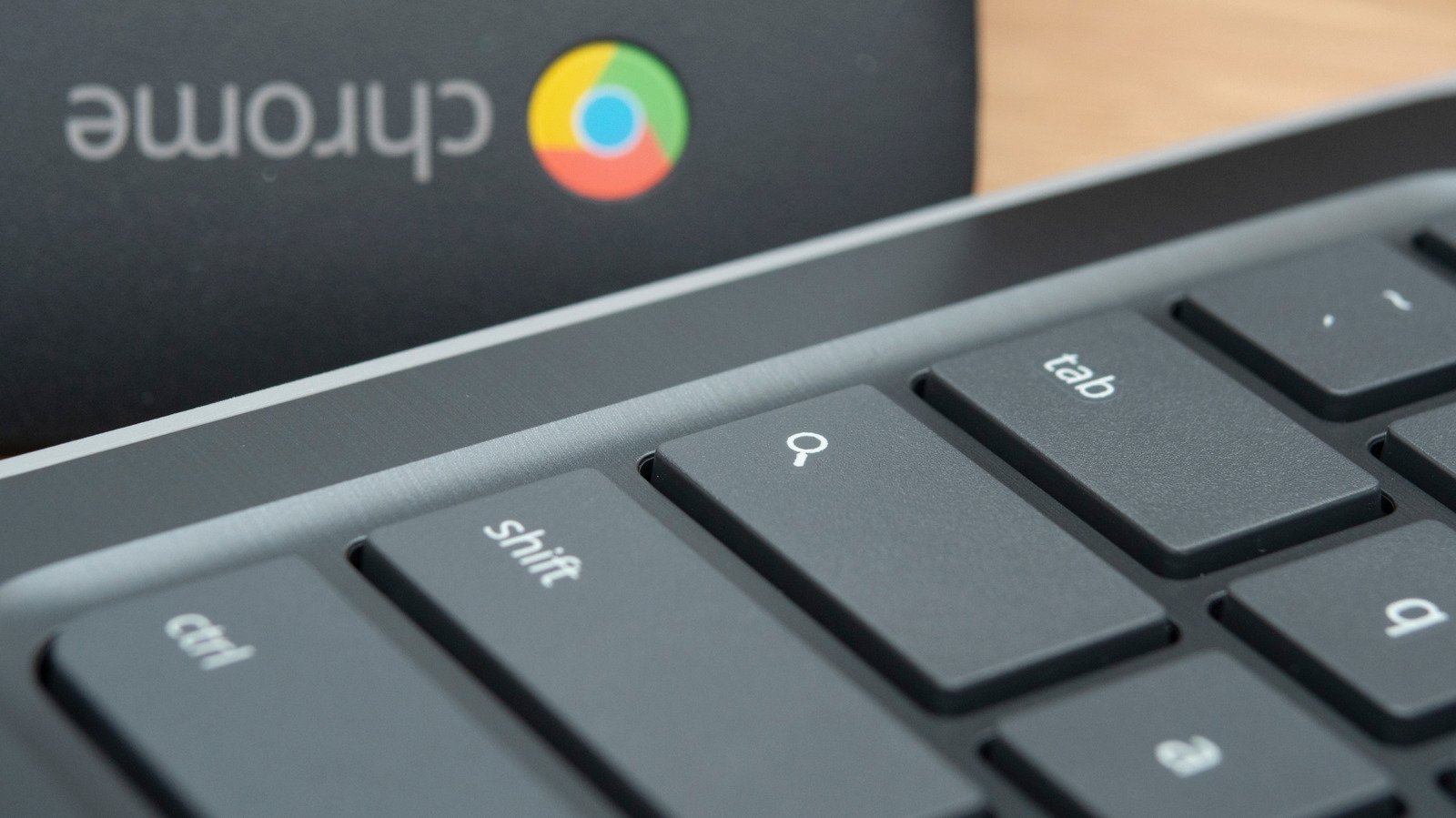
Chromebooks have often been perceived as rudimentary, budget-friendly laptops, a reputation earned due to their significantly lower cost compared to equivalent Windows machines. This affordability largely stems from their reliance on cloud-based storage and lighter hardware. However, this economical price point belies a much more capable operating system than many users ever take the time to fully explore.
Many individuals acquire Chromebooks for academic purposes or casual web browsing, remaining unaware of the extensive array of tools Google has integrated into the Chrome OS. The true surprise lies in the significant evolution of the software. In recent years, Google has dramatically enhanced and expanded its productivity tools, with a continuous stream of updates consistently introducing new functionalities. The challenge, however, is that many of the most valuable features are either deeply embedded within the settings menu or subtly placed on the desktop, making them easy to overlook. Activating these powerful features can transform a Chromebook from a mere stopgap device into a robust workhorse. Crucially, none of these enhancements necessitate expensive upgrades or endless scrolling through the Google Play Store; they simply require a few clicks in the right locations. This guide will outline five essential features that users should enable first, beginning with a function that seamlessly integrates the entire Android ecosystem.
The Phone Hub stands as the quintessential feature demonstrating Chrome OS’s profound Android integration, clearly illustrating the platform’s considerable progress. Located conveniently on the shelf, once a smartphone is paired, users gain access to a comprehensive dashboard displaying the handset’s battery level, signal strength, and recent notifications, all without needing to physically pick up the phone. This hub also allows users to silence their phone, activate its mobile hotspot, or even make it ring to locate it if misplaced. The setup process is remarkably straightforward, requiring only that both devices are logged into the same Google account. Following this initial setup, the devices remain paired and synchronized, eliminating the hassle of re-pairing with every reboot.
Where the Phone Hub truly excels is in its browsing continuity. Chrome tabs actively open on the phone are instantly visible within the hub, facilitating a seamless transition to continue browsing on the Chromebook’s larger display exactly from where one left off. Similarly, recent photographs captured on the phone automatically appear in the hub, eradicating the need for cumbersome workarounds like emailing images to oneself to transfer them to the Chromebook. For individuals deeply embedded in Google’s application ecosystem, the Phone Hub significantly reduces friction, making Chromebooks feel far more cohesive by integrating the smartphone directly into the workflow, rather than it remaining a separate, disconnected gadget.
Digital clutter can be as detrimental to focus as a disorganized physical workspace. Virtual Desks offer an elegant solution by enabling users to divide their Chromebook screen into distinct workspaces, each capable of hosting its own unique set of windows and applications. For instance, a user might dedicate one desk to work-related activities, housing email and documents, while a second desk could be assigned to research, filled with various reference tabs. A third desk might then be reserved for entertainment, featuring a music player or streaming application. Naming each desk helps maintain clarity and organization, and switching between them is effortlessly achieved with a simple four-finger swipe across the trackpad. This feature provides users with a clear visual separation of tasks, allowing them to compartmentalize their workloads and minimize distractions from other ongoing projects. Chrome OS further enhances this by allowing users to right-click an open window and directly send it to a different virtual desk, streamlining organization without the need for laborious dragging. For those who frequently find themselves with an overwhelming number of browser tabs, Virtual Desks offers an excellent method to group these tabs logically without impeding workflow. This feature is a native component of Chrome OS, requires only a few minutes to configure, and effectively brings a multi-monitor experience to a single screen, all without the need for additional hardware.
The integration of the Google Play Store marked one of the most significant advancements in Chromebook history, granting these laptops access to the vast library of Android applications. Users can now run mobile versions of essential productivity tools such as Microsoft Office and Adobe Lightroom Mobile, alongside popular streaming applications like Netflix and Disney+, which often include options for offline content downloads. This offline capability is particularly noteworthy, as it significantly enhances a Chromebook’s utility in environments without an internet connection, a fact many owners may underestimate. Downloading movies or documents in advance of travel is one of the most intelligent ways to leverage this functionality.
Gaming on modern Chromebooks also presents a pleasant surprise. Popular titles like “Minecraft” and “Stardew Valley” perform admirably on current hardware, and the prevalence of touchscreens on many models makes app navigation feel intuitive and natural. Essentially, the Play Store transforms a Chromebook into a large-screen Android tablet, offering users the best of both desktop and mobile computing worlds. Between its expansive app library, offline download capabilities, and gaming potential, this single feature contributes more than any other to expanding the daily capabilities of a Chromebook. The Play Store also effectively bridges gaps where web applications might still fall short, providing everything from lightweight photo editors to note-taking tools that are perfectly suited for touchscreen interaction. This feature genuinely makes a Chromebook feel like a complete and versatile computer for a broad range of users.
The once tedious process of transferring files between devices, often involving emailing copies to oneself or rummaging for a USB drive, has been revolutionized by Nearby Share. This feature eliminates such friction by enabling users to wirelessly send photos, videos, links, and documents between Chromebooks and Android devices using Bluetooth and Wi-Fi. Operating similarly to Apple’s AirDrop within Google’s ecosystem, it offers a natural and seamless experience for users who already own other Android devices. To initiate a transfer, users simply select a file, choose Nearby Share from the sharing menu, and the device will automatically scan for other compatible hardware in the vicinity. Once the recipient accepts the transfer, the file is rapidly moved without the need for messy cables. Customizable visibility settings allow users to control who can discover their device, with options including “everyone,” “contacts only,” or exclusively the user’s own hardware. This tool proves exceptionally useful for students collaborating on projects or colleagues exchanging reports in a meeting room, quickly becoming an indispensable feature after just a few uses. While seemingly minor, it elegantly resolves one of the most frustrating aspects of everyday computing. Furthermore, no cloud upload is involved, meaning files are transferred directly between devices, ensuring both speed and the security of sensitive documents by preventing them from lingering on a server.
A common misapprehension is that Chromebooks are confined to running only web applications. This ceased to be true with the introduction of Chrome OS’s robust support for a full Linux development environment. By activating Linux in the settings, users gain access to a command-line terminal and the ability to install desktop-class software that web browsers cannot natively handle. This includes powerful code editors, sophisticated graphic design tools like GIMP, and alternative office suites such as LibreOffice. While requiring a slightly greater degree of technical proficiency than simply installing an app from the Play Store, the reward is a budget-friendly laptop capable of executing demanding software. This capability is particularly significant for developers and power users who have historically dismissed Chromebooks as too limited. Students learning to code can utilize a Chromebook as a legitimate development machine, and creative professionals can leverage open-source tools that are highly competitive with expensive proprietary software. This newfound flexibility effectively addresses some of the platform’s previously acknowledged limitations for intensive tasks, pushing the hardware well beyond its original browser-centric foundations. When combined with the other features discussed, Linux support transforms a modest, affordable laptop into a genuinely powerful computing device. Although a bit of patience is required to become comfortable with a terminal interface, the benefits quickly materialize for anyone who requires genuine software applications rather than just browser tabs. With Linux enabled, the Chromebook transcends its role as a secondary device and becomes a primary computing solution.