









How Gemini Transformed My Chaotic Workflow into an Organized Google Keep System
For many of us, managing a household while balancing a professional career can feel like a perpetual juggling act. Between caring for a baby, managing pets, and staying on top of work meetings, the mental load is immense. For a long time, I relied on Google Keep to stay afloat, but the constant manual input required to keep my lists updated was becoming a source of friction rather than a solution.
Everything changed when I discovered how to leverage the power of Gemini to automate my note-taking and checklist creation.
Moving Beyond Basic Voice Notes
Historically, taking voice notes in Google Keep was a hit-or-miss experience. While the app allowed for quick audio recordings, the transcription was often unreliable, and the resulting text was just a block of unformatted speech. I would often end up with a wall of text that required manual cleanup, forcing me to stop what I was doing to format items into actionable checkboxes.
Furthermore, the standard voice recording feature in Keep has a 30-second limit—a significant bottleneck if you have a long list of errands or a complex thought process to record.
The Gemini Advantage
Integrating Gemini into Google Keep has fundamentally shifted how I handle my daily tasks. Unlike the standard transcription tools, Gemini understands natural, conversational language. I no longer need to enunciate slowly or speak like a robot; I can simply talk to my phone naturally, and the AI correctly interprets my intent, formatting my ramblings into clean, organized, checkbox-enabled lists.
This integration has been a game-changer for my "on-the-go" workflow. Whether I am mid-task with my baby or walking the dogs, I can trigger a command from my home screen and dump my brain’s contents into Keep without ever needing to open the app or manually edit the text afterward.
How to Set Up Gemini for Google Keep
If you are looking to streamline your own productivity, setting up this workflow is straightforward. First, ensure you have an active Google AI Pro or Ultra subscription. Once you are set, follow these steps:
- Open the Gemini app on your device.
- Tap on your Settings.
- Select Personal Intelligence.
- Navigate to Connected apps.
- Toggle the switch for Google Workspace to the "On" position.
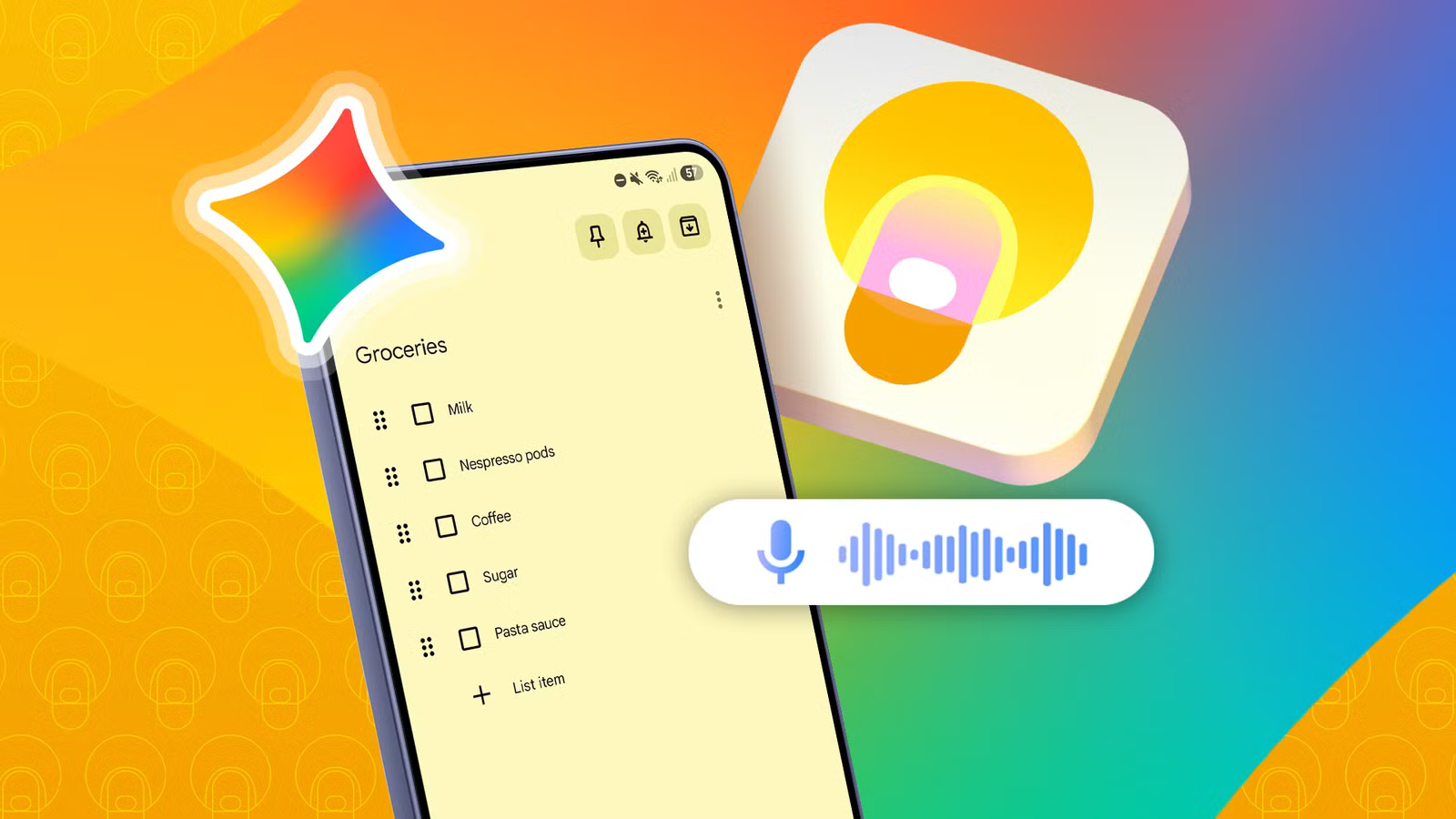
Once connected, you can simply speak your requests naturally. For example, a prompt like, "I need milk, Nespresso pods, coffee, and sugar, and please add pasta and sauce to the list," will result in an perfectly formatted shopping list appearing in your Google Keep.
Why This Workflow Works
The biggest benefit I’ve noticed is the elimination of the "I’ll organize this later" mentality. By allowing Gemini to handle the formatting and categorization in real time, the barrier to capturing information is significantly lowered. It effectively removes the frustration of manual data entry, ensuring that my tasks are captured accurately the first time.
If you find yourself constantly overwhelmed by a disorganized list of notes or frustrated by inaccurate voice-to-text tools, I highly recommend adopting this Gemini-integrated approach. It has not only made me more efficient but has also cleared a significant amount of mental clutter, allowing me to focus on the things—and people—that actually matter.