








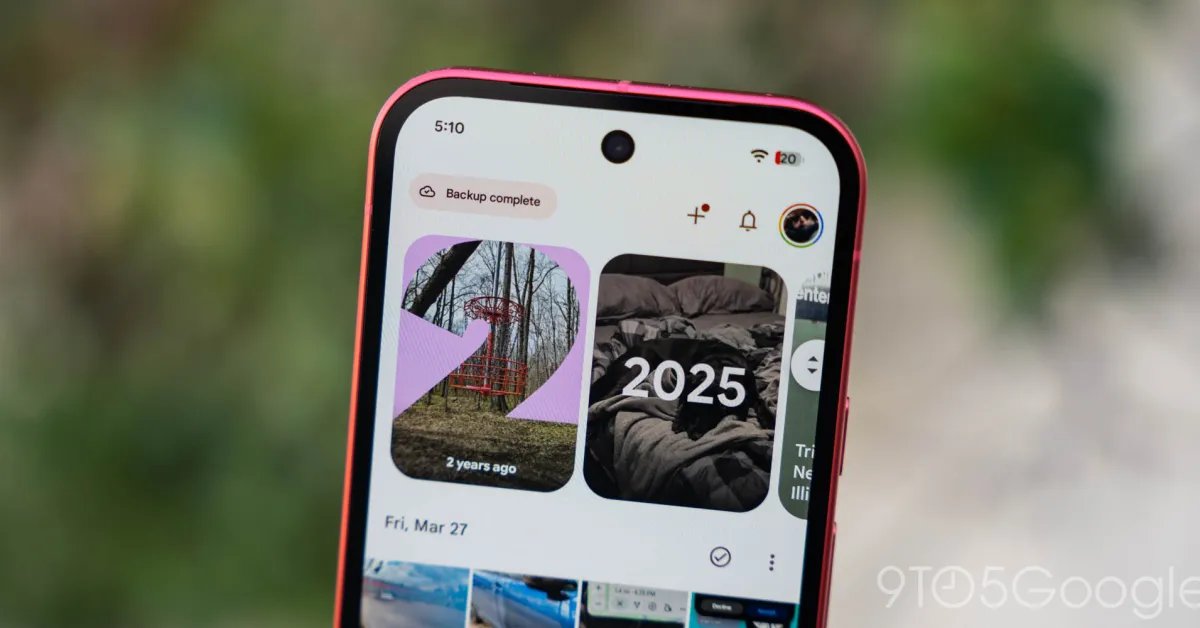
Google Photos for Android is undergoing a significant interface transformation, marking a departure from the static layout users have relied on for years. Following the introduction of a floating navigation bar earlier this summer, Google has now turned its attention to the Collections tab, introducing a robust customization engine that gives users direct control over how their media categories are organized and displayed.
The Shift Toward User-Centric Design
The previous iteration of the Collections tab followed a rigid, machine-determined structure. It featured a fixed 2×2 grid at the top, housing shortcuts for Favorites and Trash, while the remaining two slots dynamically changed based on the user’s interaction frequency. Below this, the screen was cluttered with large, uniform cards for diverse categories such as Albums, People & pets, and Documents. This was followed by a secondary list including system folders like Screenshots and Recently Added.
This older format prioritized consistency over utility, often forcing users to scroll past collections they rarely accessed to find the ones they needed most. The latest update, arriving with version 7.97, abandons this one-size-fits-all approach in favor of a modular architecture that treats every media category as a movable, togglable component.
Key Features of the Collections Redesign
The core of the new experience is the “Pinned” section. This area serves as a primary access point for the most important categories. By default, Google populates this with Favorites, Screenshots, and Trash. However, users are no longer limited to these selections. The system now allows for complete modification of this header, meaning users can pin their most frequent destinations—such as Albums or People & pets—to the very top of their screen. For those who prefer a cleaner aesthetic, the entire Pinned section can be dismissed.
Beyond the Pinned section, the app now uses a series of horizontal carousels for the remaining major categories, including On this device, Albums, People & pets, Wardrobe, Places, and Documents. The interface also includes a “View all” button in the upper-right corner, allowing for an immediate transition into a comprehensive grid or list view if the user prefers to browse their files without the carousel constraints.
Advanced Customization and Reordering
Perhaps the most impactful change for power users is the ability to hide sections and rearrange the hierarchy of the page. The app now includes a dedicated “Reorder” function, accessible at the bottom of the Collections tab. This utility allows users to drag and drop collections into a sequence that matches their specific workflow.
If a user primarily uses Google Photos to manage documents for work, they can move the Documents folder to the top position. Conversely, if a user relies on the service mainly for social or personal album curation, they can deprioritize the system-generated folders. This level of granularity effectively turns the Collections tab into a personal dashboard, reducing the time required to navigate through the extensive library of media assets.
The “Other Collections” Grid
At the base of the tab, the new design introduces a dedicated “Other Collections” grid. This acts as a catch-all container for the remaining categories that didn’t make the cut for the top-level pinned or carousel sections. This list includes:
– Favorites
– Screenshots
– Moments
– Videos
– Recently Added
– Stickers
– Creations
– Archive
– Locked
– Trash
By separating these items into a bottom grid, the main screen remains uncluttered, yet ensures that no functionality is lost. This hierarchy separates the frequently accessed content from the occasional utility functions, creating a more professional and efficient navigation environment.
Impact on User Workflow and Data Management
The primary impact of this redesign is the reduction of cognitive load. By allowing users to curate their own environment, Google Photos is moving away from being a generic repository toward becoming a specialized management tool. For users with thousands of photos and screenshots, the ability to hide irrelevant categories like “Stickers” or “Creations” immediately makes the app feel faster and more responsive to specific needs.
Furthermore, the integration of these features into a server-side update means that users can expect these changes to persist across sessions and potentially across devices. By moving to this modular framework, Google is also setting the stage for future organizational features, as the architecture now supports adding, removing, or re-categorizing content types without requiring a complete app overhaul in the future.
This rollout is currently underway for Android users on version 7.97. While some updates of this scale typically require a restart or a cache clear to trigger, the flexibility offered by this change makes it a noteworthy step forward in mobile photo management, emphasizing that personalizing one’s digital workspace is as important in a cloud photo library as it is on a desktop file system.
Disclaimer: This content is auto-generated for informational purposes only.
Source: Read Original News