








The Universal Serial Bus (USB) standard has become the backbone of modern computing connectivity. While Apple played a foundational role in popularizing USB by stripping away legacy ports on the original iMac, the ubiquity of the interface has led to a standard experience across almost all consumer hardware. Despite this standardization, Mac users occasionally encounter frustrating scenarios where a peripheral fails to initialize or respond when connected. Resolving these connection issues requires a systematic approach, moving from software permission settings to physical hardware integrity checks.
Managing macOS Accessory Permissions
A frequent cause for “missing” USB devices on modern Apple hardware is the operating system’s robust security framework. macOS is designed to prevent unauthorized devices from accessing user data. By default, the system requires explicit user permission for any new accessory that requests a connection to the data bus. If a prompt is accidentally dismissed or ignored, the Mac will often restrict the device to charging only, preventing data transfer.
To address this, users should navigate to System Settings, select Privacy & Security, and scroll to the Accessories section. Within this menu, the “Ask for new accessories” setting controls how the system interacts with hardware. Users can select “Automatically allow when unlocked” to streamline their workflow, though keeping the setting on “Ask for new accessories” remains the most secure practice for users operating in public spaces. If an accessory is not appearing, simply unplugging and reconnecting the hardware often triggers the OS to re-scan the port and prompt for the necessary security permissions again.
Verifying Hardware Detection via System Information
If permission settings are not the culprit, the next step is to determine whether the Mac physically registers the device on the bus. Users can bypass the simplified interface to look at the raw hardware enumeration by holding the Option key while clicking the Apple menu and selecting System Information.
Navigating to the Hardware section and selecting the USB or Thunderbolt category provides a detailed tree of every controller and peripheral currently connected to the machine. If the device appears in this list but remains non-functional, the issue likely resides with software drivers or an incompatible file system. If the device does not appear here at all, the problem is almost certainly related to the physical connection, the cable, or a failure of the device to draw sufficient power from the port.
Troubleshooting Power Constraints
Power management remains a common point of failure for USB connectivity. Some peripherals, particularly external mechanical hard drives or high-performance docks, require more current than a standard port may provide. If a user receives a notification regarding insufficient power, the hardware is physically connected, but the electrical requirements of the device exceed the output limits of the MacBook’s controller.
In these instances, a powered USB hub—one that plugs into a wall outlet rather than relying on the computer’s battery—is necessary to stabilize the connection. Additionally, if the peripheral is connected through a series of daisy-chained docks or adapters, it is highly recommended to bypass these intermediaries. Direct connection to the machine eliminates potential bottlenecks and identifies whether a faulty hub is degrading the signal.
Resolving Driver and Compatibility Conflicts
When hardware is detected but fails to mount or function correctly, the issue often lies with the file system or necessary third-party software. macOS supports formats such as APFS, ExFAT, and FAT32; however, hardware formatted for specific enterprise systems or older Windows-only standards may require manual intervention or specific driver installation to mount correctly.
Users should verify that their operating system is fully updated through System Settings. Apple frequently updates the underlying kernel and USB drivers to resolve compatibility bugs. Furthermore, many specialized devices—such as professional audio interfaces or complex docking stations—require proprietary drivers provided by the manufacturer. Ensuring that these drivers are compatible with the current version of macOS is essential, as OS updates can occasionally break legacy software extensions.
Physical Maintenance and Cable Integrity
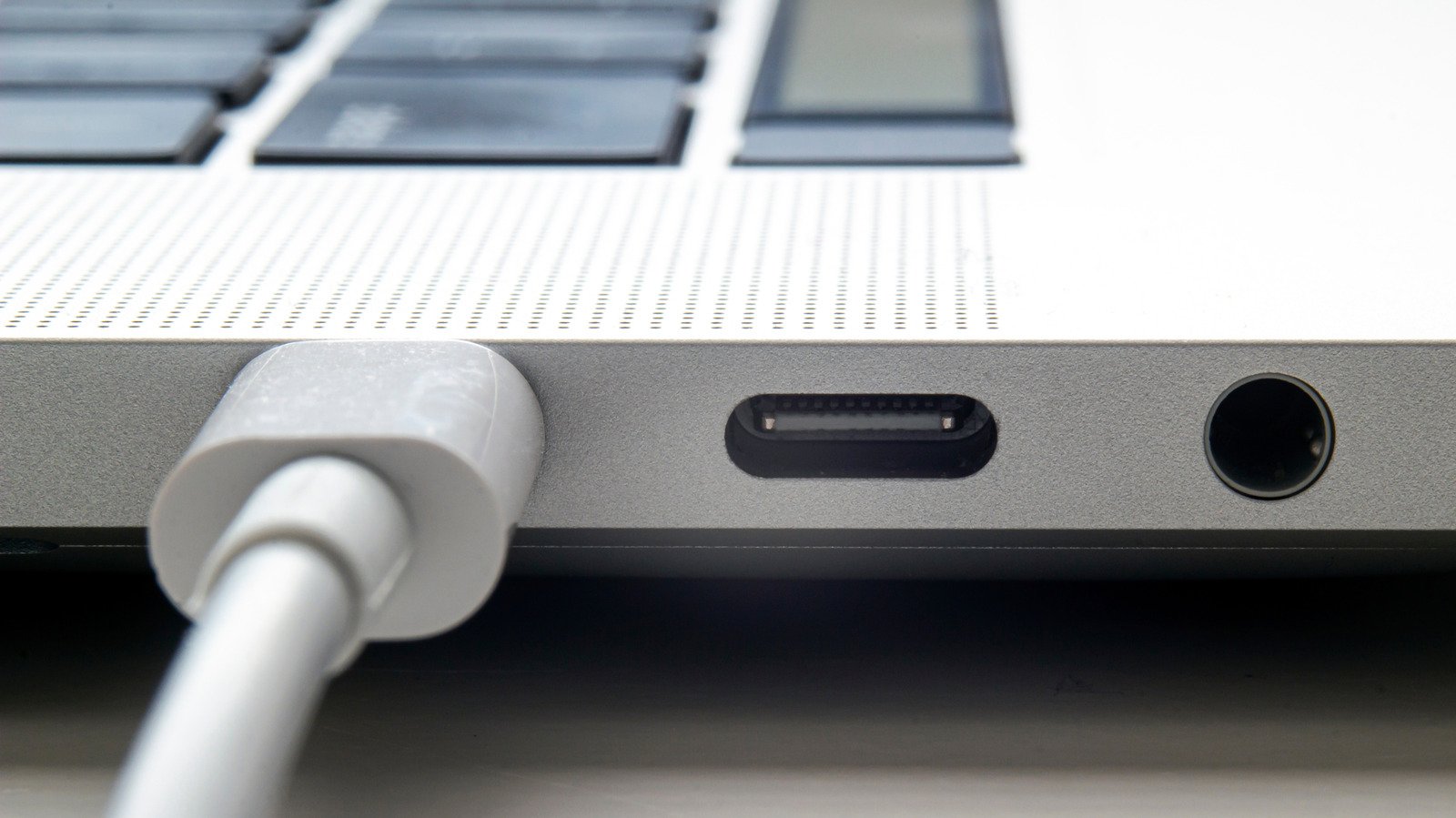
Finally, one must never overlook the physical reality of the ports and cables. USB-C and Thunderbolt ports are susceptible to debris, such as pocket lint, dust, or oxidized particles. These contaminants can prevent the pins inside a port from making a clean electrical connection. Using compressed air to clear out the ports can often restore functionality.
Cable quality is equally critical. Not all USB-C cables are created equal; some are intended solely for power delivery and lack the necessary data lanes to transfer information. A cable that charges a laptop may be incapable of syncing a high-speed external drive. If a cable shows signs of fraying, discoloration, or bent connectors, it should be discarded immediately, as these defects can lead to short circuits. By narrowing down the issue through this hierarchy of checks—software permissions, system hardware trees, power supply, and finally physical cleanliness—most USB connectivity issues on a Mac can be resolved without professional intervention.
Disclaimer: This content is auto-generated for informational purposes only.
Source: Read Original News