







Streamlining the Windows Experience with Automated Application Management
Performing a fresh installation of Windows is often a double-edged sword. While it clears away system bloat and resolves lingering performance irregularities, it forces the user to confront the tedious task of reinstalling dozens of software applications. Traditionally, this required navigating to countless websites, clicking through repetitive installation wizards, and manually tracking version updates. Fortunately, the emergence of advanced package managers has transformed this manual chore into a largely automated process. UniGetUI has emerged as a leader in this space, providing a robust, graphical interface for Windows package management that simplifies the recovery of your digital workflow.
Conducting a Strategic Audit of Installed Software
Before initiating a system migration, it is critical to perform a thorough audit of currently installed software. Over time, personal computers accumulate applications that are rarely used, consuming storage and complicating the backup process. Treating a fresh start as an opportunity for digital housekeeping significantly reduces the duration of the subsequent restoration phase.
Users should navigate to the Windows settings menu under Apps and Installed apps. By sorting this list by file size, it becomes easier to identify high-capacity programs that may no longer be required. Removing extraneous software ensures that your installation bundle remains lean, consisting only of the tools essential for daily productivity. Furthermore, clearing out obsolete entries prevents the migration of redundant dependencies or legacy configuration files that might otherwise clutter a clean system.
Leveraging UniGetUI for Efficient Software Bundling
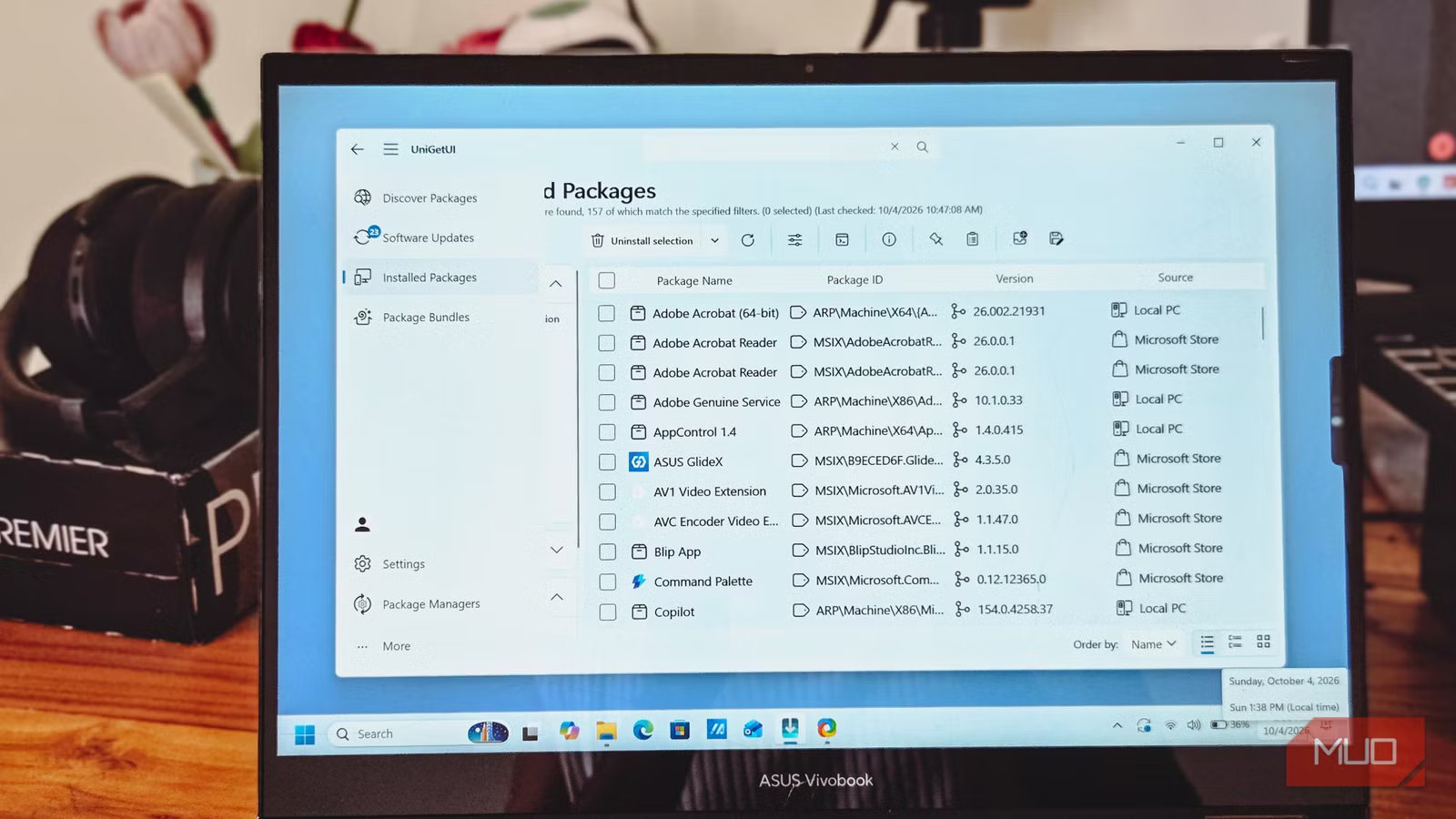
UniGetUI serves as a centralized management layer, pulling together disparate sources like WinGet, Chocolatey, Scoop, and Python’s pip into a single, intuitive interface. Beyond its capability to manage updates, its core strength for system recovery lies in its Package Bundles feature.
To capture your current environment, install UniGetUI from the Microsoft Store or via a terminal command. Upon launch, navigate to the Installed Packages section and utilize filters to isolate the software managed by repositories. By selecting the desired applications and utilizing the Add selection to bundle command, users can generate a compact configuration file. This file acts as a snapshot of your software environment. It is recommended to store this file on an external drive or cloud storage. For applications that are not part of a standard repository—such as specialized internal tools, paid software with unique license keys, or specific security drivers—it is advisable to maintain a secondary manual checklist, as these programs often require individual handling or physical installation media.
Automating the Deployment Phase on New Hardware
The true value of this workflow becomes apparent once the new system or fresh install is ready for operation. After completing the initial Windows setup and ensuring all operating system updates are applied, the user can deploy their software library with minimal interaction. By opening the previously saved bundle file within UniGetUI, the software automatically populates the queue with the required applications.
The installation process leverages the silent deployment capabilities of various package managers, effectively bypassing the need for manual clicking through installation wizards. The system administrator’s primary role during this phase is simply to confirm User Account Control (UAC) prompts for administrative installations. This transition from hours of manual labor to a supervised, automated sequence reduces the risk of human error and ensures that all selected applications are configured with their standard, current versions.
The Technical Distinction Between Recovery and Restoration
It is important to understand the technical limitations of package-based restoration. While UniGetUI excels at installing the software binaries, it does not inherently migrate the application-specific settings, local databases, or registry configurations associated with those programs. The restoration of an application list is essentially a deployment of the executable files.
For users seeking deeper integration, native Windows 11 features provide a starting point. The Windows backup utility, accessible via account settings, offers a basic synchronization of your installed application list to your Microsoft account. However, this functionality is primarily designed to restore start menu pins and taskbar shortcuts for software sourced from the Microsoft Store. It stops short of performing the actual installation. In contrast, the combination of UniGetUI and repository-based management creates a more powerful, hardware-agnostic method to re-establish a complete, functional computing environment efficiently.
Maximizing Utility Through Repository Integration
By mastering the integration of WinGet and UniGetUI, power users and IT professionals alike can maintain a consistent software standard across multiple machines. The ability to export an application manifest—specifically via the Winget command line interface—complements the graphical ease of UniGetUI. Whether you are migrating to a new machine or recovering from a system failure, this approach eliminates the traditional friction associated with Windows setups. By focusing on automated deployment, users can spend less time configuring their operating system and more time utilizing the applications that define their digital output.
Disclaimer: This content is auto-generated for informational purposes only.
Source: Read Original News